

File and Image Pickers
The File Picker and Image Picker components allow users to upload files and images to your apps. Once a user uploads a file or an image, Glide converts these files to links that can be displayed in your apps or downloaded by users.
Adding File and Image Picker Components
You can add a file or image picker as a standalone component, or as part of a form in a form container. To set it up:
In the Layout Editor, select the tab you want to edit.
Click on the plus (+) symbol in the Components panel.
Select which column in your Data Source the file link should be stored in. Make sure this is a column that supports a file or an image.
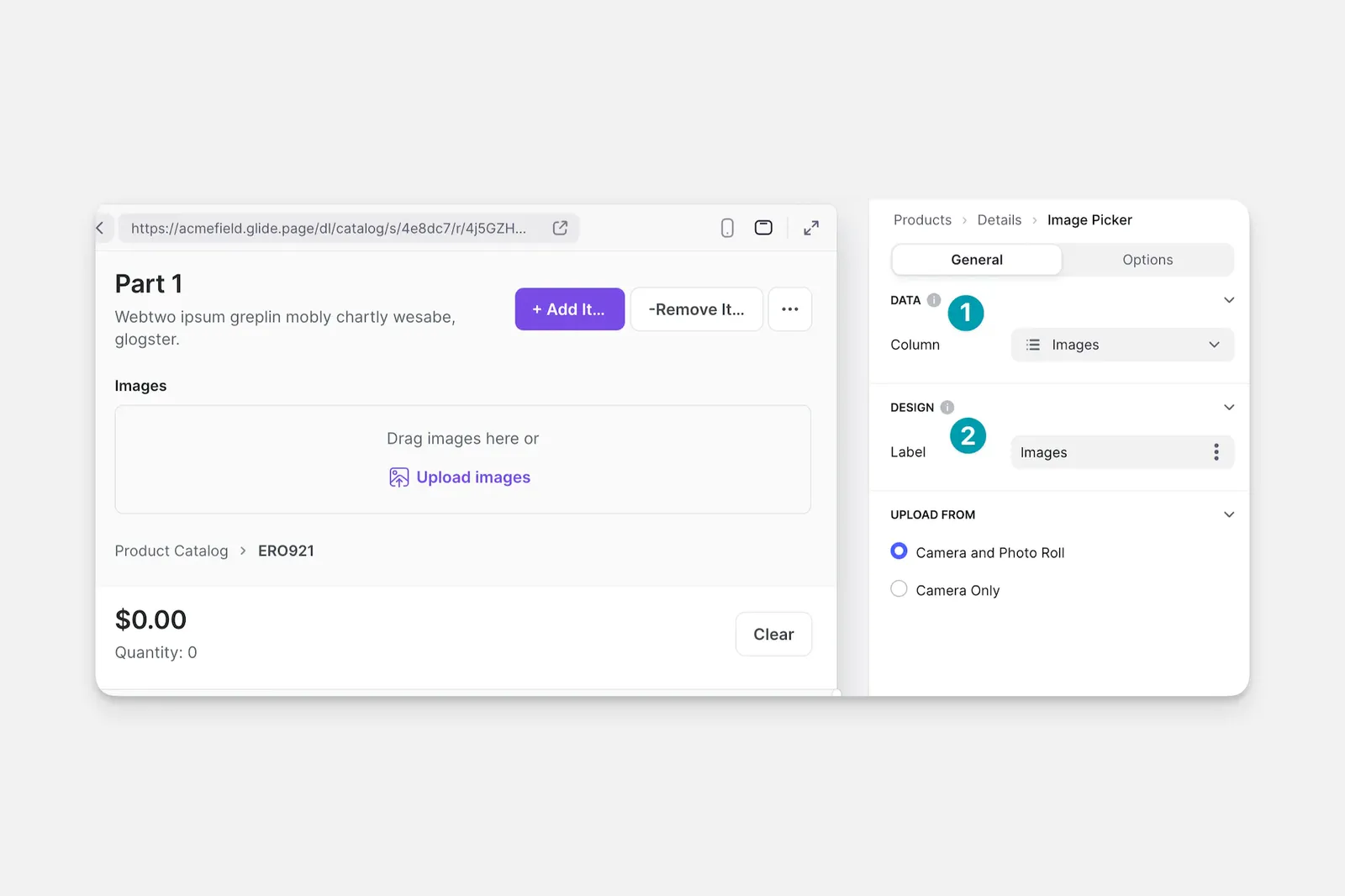
Customizing the Image Picker
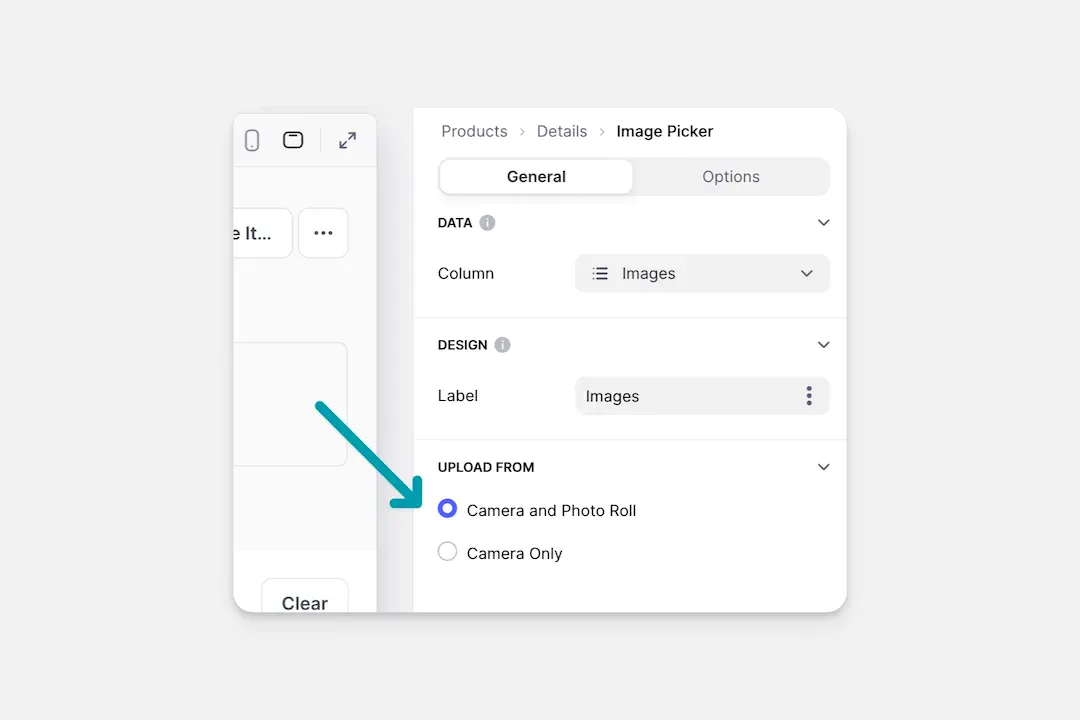
Image Source
When setting up the Image Picker you can decide if users can upload photos directly from their camera, or from both their camera and their device.
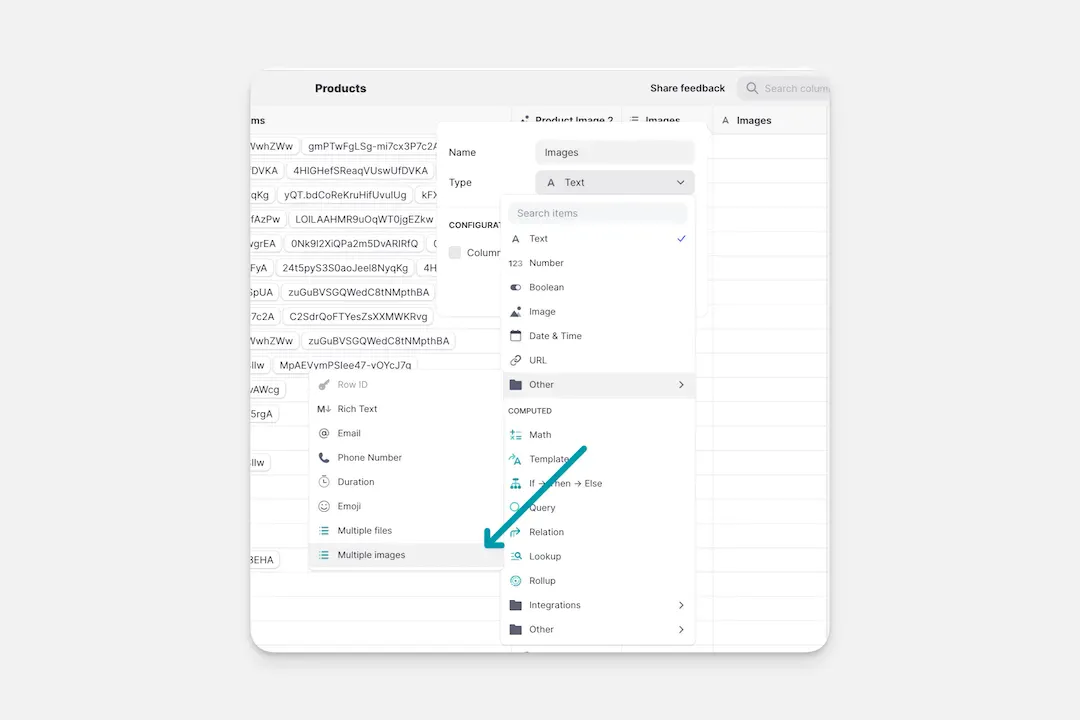
Uploading Multiple Images
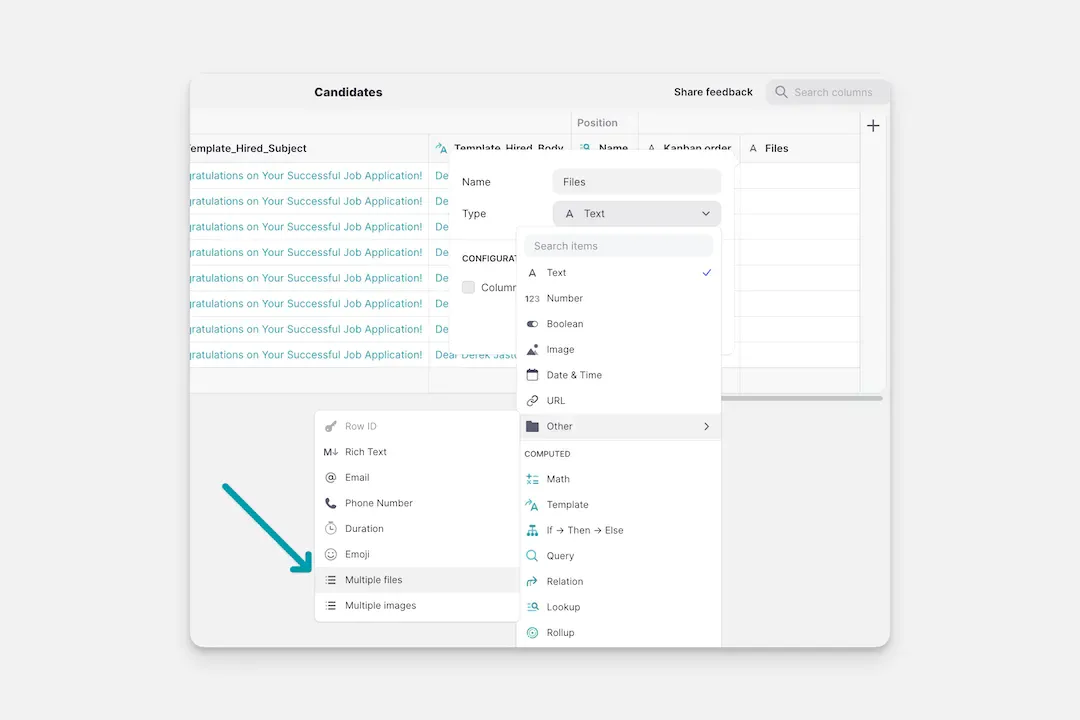
To allow users to upload multiple images at once, first create a Multiple Images column in the Data Editor. When you use this column for the image picker, the component will automatically allow users to upload multiple images at once. Multiple image uploads are only possible with Glide Tables or Big Tables.
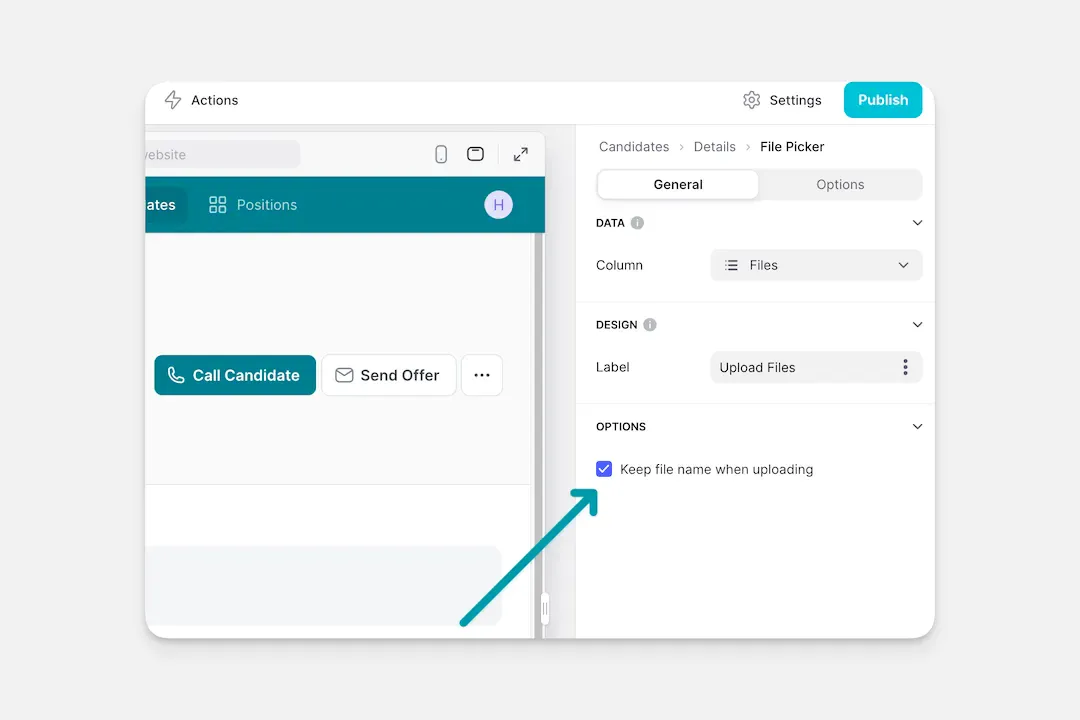
Customizing the File Picker
When setting up the File Picker, you can choose to keep the native file name the user made, or create a new file name when the file is uploaded.
Uploading Multiple Files
To allow users to upload multiple files at once, first create a Multiple Files column in the Data Editor. When you use this column for the image picker, the component will automatically allow users to upload multiple files at once. Multiple file uploads are only possible with Glide Tables or Big Tables.
Security and Storage Quotas
Files and images are uploaded to Glide’s server, and there is a storage limit based on your team’s current plan. Check out Glide’s pricing guide to learn more about the different plans that are available.
Frequently Asked Questions
Why are my users only getting the option to upload one image or file?
To enable upload of more than one image or file, you must first create a Multiple Image or File column in your data table. That column must be used in the setup of the component.
What happens to files uploaded into my app?
You can learn more about what happens to files and images after they are uploaded here.
Is there a file size limit for files and images uploaded through the picker?
Yes, there is a file size limit of 1 GB.