

Show Edit Screen
The Show Edit Screen action allows you to prompt users to edit data on the current screen they’re viewing.
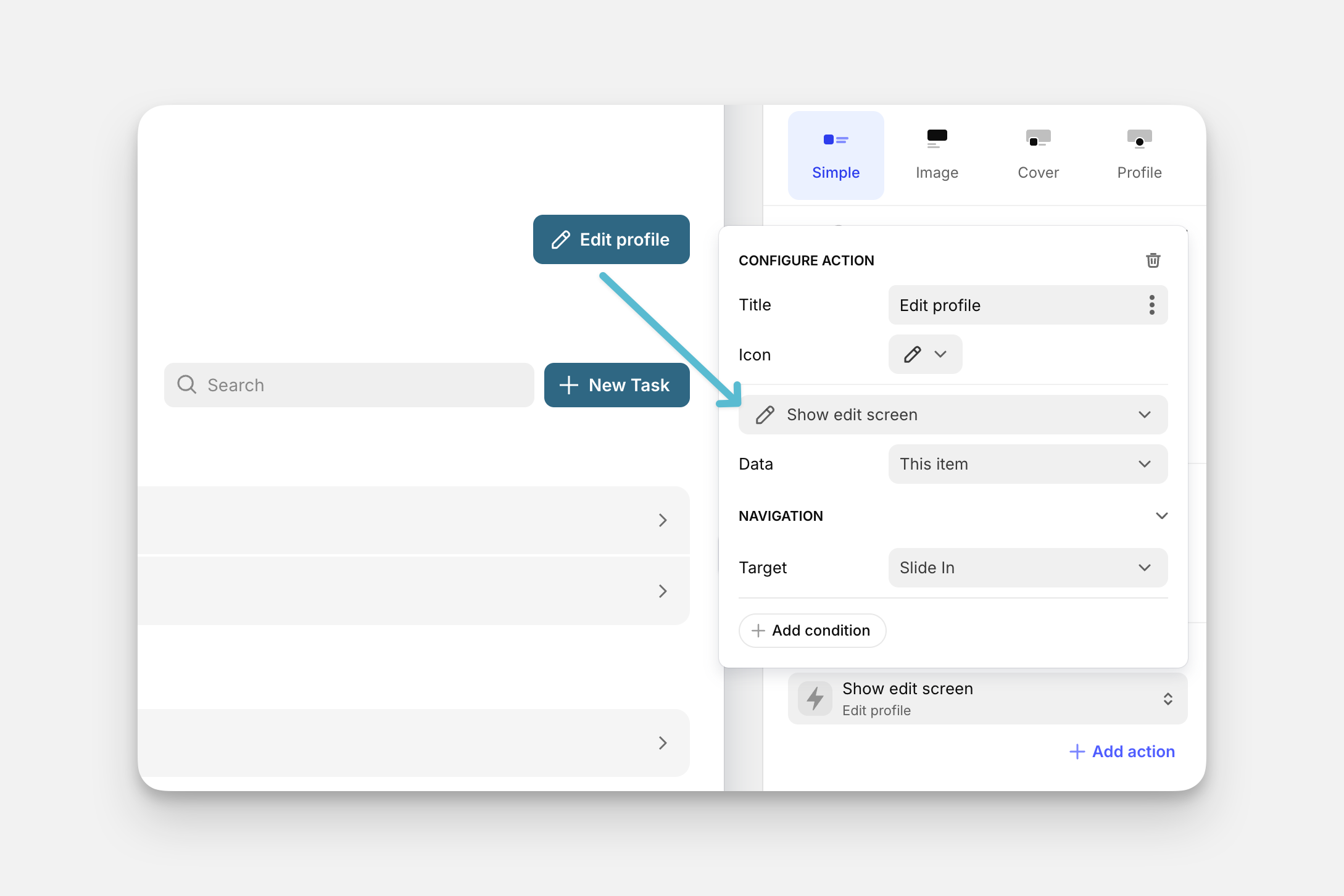
The Show Edit Screen action can be used as an action in the components of your app (like Buttons, Collections, and much more), or it can be triggered along with other actions as part of a Workflow.
Setting up the Show Edit Screen Action
Layout Editor
Workflow Editor
Click on the plus (+) sign in the Components panel and select the Component you want to trigger the action.
In the General tab on the right side of the Layout Editor, navigate to the Actions section and select Show edit screen.
In the Data field, select the screen which the user can edit. For the current screen, select This item.
In the Navigation field, select how the edit screen fields should appear: as the current screen, main screen, an overlay, or a slide in.
You can optionally add Conditions for certain criteria to be met before a user can trigger this action.
Once this is done, on the Screen (not the components panel), click on the component you selected to trigger the action. A Form Container will appear with the data from that row filled in, and the components panel will change to reflect the fields in this form.
Check the Introduction to Actions page for a full list of components that can be used to trigger actions.