

SQL Server
Connect to your SQL Server and build database-grade apps and tools.
SQL data sources are currently available to Enterprise customers only. Browse our plans to find the right fit for you.
Microsoft’s SQL Server is a relational database management system. With the SQL Server integration, you can connect to an existing database and bring the data directly into your Glide app. You can both read and write to your SQL Server database.
Just getting started with SQL Server? You can read more about how to get set up here.
Adding SQL Server to your app
Glide apps cannot be started directly from SQL data sources. If you’re starting a new app, select Glide Tables as the source and then follow the steps below to add your SQL data.
If your credentials appear as a connection string from your hosting platform, the information above can be found in that string in this format: sql_database_type://database_user:password@host:port/database
In Glide, open the Data Editor and click the plus (+) next to Tables to add a new table.
SQL data source integrations can also be added in App Settings, in the Integrations menu. If you have multiple databases to sync from the same source, you can add those in the Integrations menu.
Syncing Data from SQL Server
Now that you’ve connected the database to your app, you can add data from it in the Data Editor. You can link a full dataset to create a read and write table in Glide, or you can query your data to create a read-only table. To read and write to a table, your table must have at least one primary key. If you haven’t set a primary key in your source table, Glide will prompt you to choose one. Date or time fields cannot be the primary key at this time.
If you’d like to let users manually refresh data in your app, you can create a Reload query action.
Creating a read-and-write table
In the Data Editor, click the plus (+) button to add a new table.
If your table’s schema has changed, click the ↻ icon next to the table name to update the columns of your table. This will not update automatically, so if you’ve made a change to your table in your SQL database, you must sync the table schema for that change to appear in Glide.
Creating a read-only table with a query
You can also query your data to create a read-only table in Glide. Data from SQL data sources is not mirrored. This means that Glide queries your database to retrieve the data from your SQL table. This query happens on demand when you view the data in the data editor, and when users view the data in your app. To allow users to manually refresh the data in your app, you can create a Reload query action.
In the Data Editor, click the plus (+) button to add a new table.
In the query screen, run whatever queries you like to create the dataset you want to pull into Glide.
Editing Your Queried Table
To change your table:
In the Data Editor, open the table you created with the query.
Removing your SQL data source
To remove your SQL data from your Glide app:
In the Data Editor, unlink each table you synced from the database.
Once all tables are unlinked, go to the App Settings menu and select Remove from app.
Note that if you created any Reload Query actions connected to this data source, those actions will disappear from your app.
File Tracking with SQL Databases
If you use components that allow users to upload files to your app, Glide will automatically create a Big Table in your team to save both the file and several pieces of metadata. The table will be named with the convention Team Name: Uploaded Files. This new table will automatically store the following metadata:
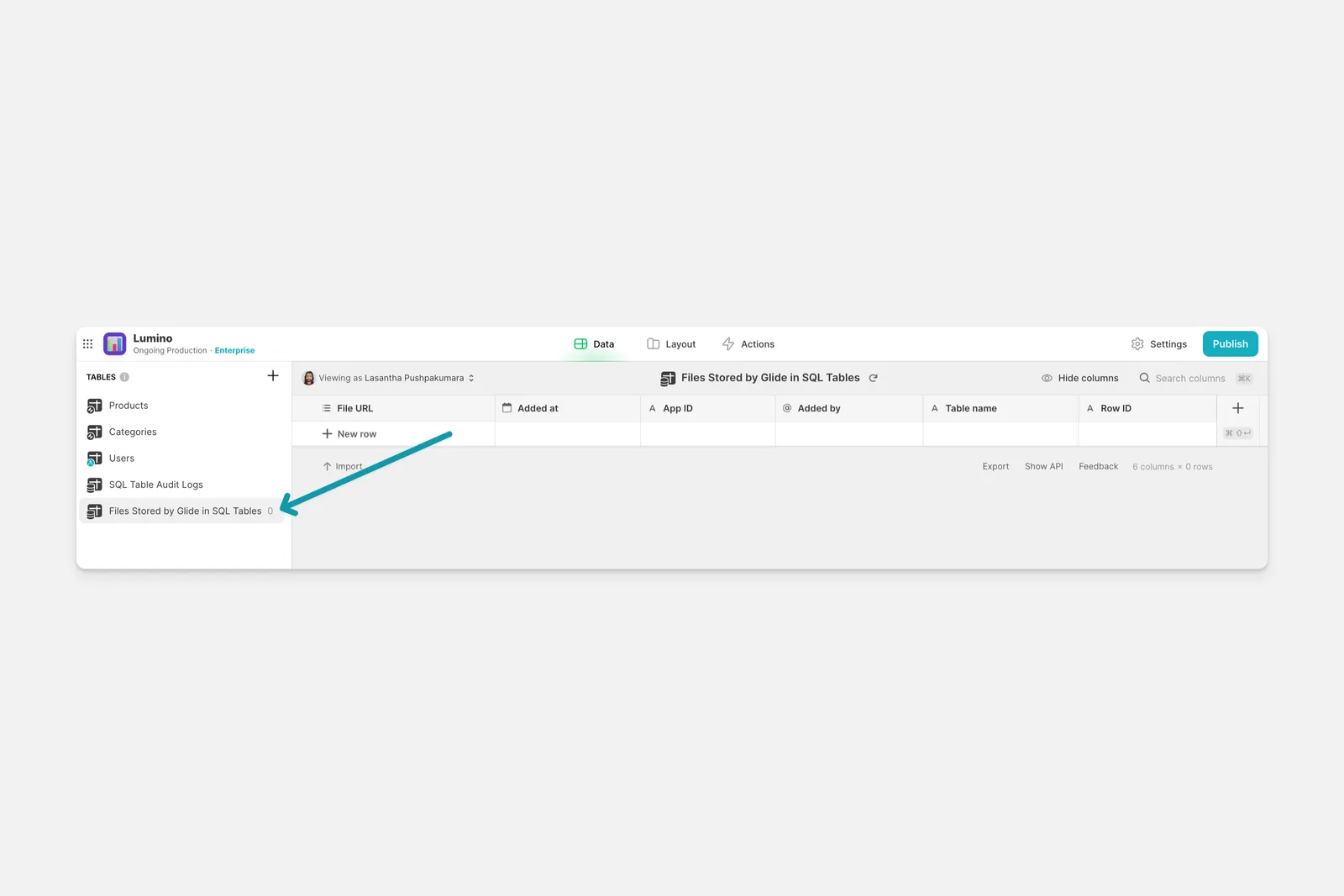
- URL of the file
- Timestamp of when the file was added
- AppID of the app that saved the file
- Email of the user who uploaded the file
- Name of the table where the file was saved
- the RowID of the row the file was saved in
This table will be created the first time a user uploads a file to an app with a SQL data source, and the table cannot be deleted. The columns in the table also cannot be changed. If you create more than one app with a SQL data integration, each app with the integration will automatically have this Big Table. You can also link this table to other apps within the same team, enabling you to create a standalone app with this data, if desired.
SQL Data Sources Audit Log
When you sync a SQL data source to Glide, an audit log is automatically generated to keep track of any new data that is written to your SQL data source. This audit log will appear as a Big Table in the Data Editor called SQL Table Audit Logs and is read-only. The table cannot be deleted. The columns in the table also cannot be changed.
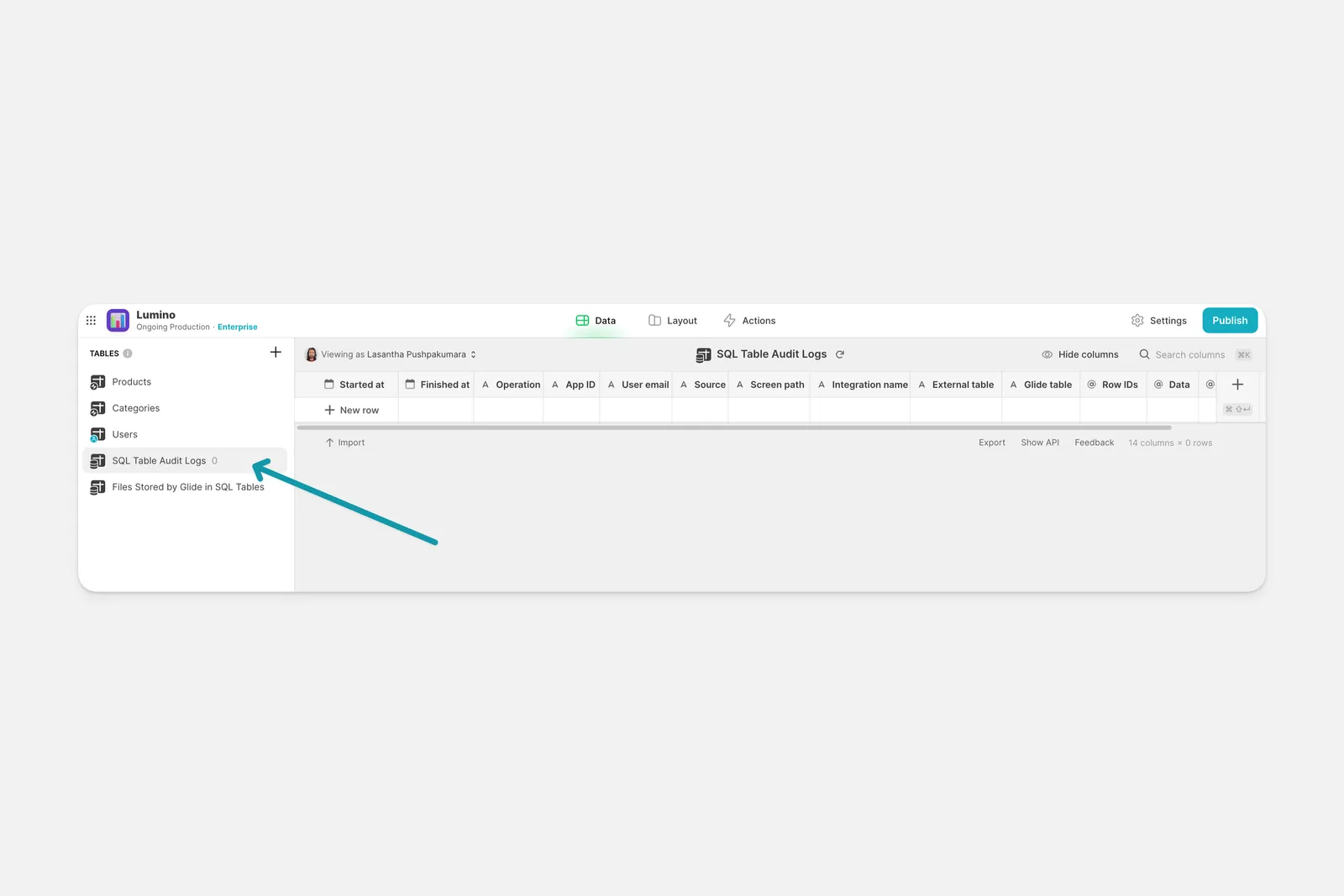
The audit log table can be used in your apps if you’d like to build interfaces or other functionality for users. It will automatically capture the following information when data is written to the SQL data source:
- Date and time the write started at
- Date and time the write ended at
- Operation (add, delete, or set)
- The App ID that made the change
- User email who made the change
- Source of the change (Builder, Data Editor, etc.)
- Screen path where the change was made
- Which SQL integration was used
- The name of the table that was changed in the external SQL database
- The name of the Glide table that was changed
- The Row ID of the row that was changed
- The full data package that was sent, as JSON
- The result of the change, as JSON
- Any error message that may have been returned
This audit log can be useful for debugging any issues that may arise when trying to write to a SQL data source, or for administrators or IT to have a high level view of what changes are being sent to your database. If you create more than one app with a SQL data integration, each app with the integration will automatically have this Big Table. You can also link this table to other apps within the same team, enabling you to create a standalone app with this data, if desired.
Limitations of SQL Server
It is not possible to use a table from a SQL data source as your app’s Users Table.
The primary key column must be unique and stable. “Unique” means that no two rows can have the same primary key. “Stable” means that the same row must always have the same primary key, which means that it can’t be an ID that’s randomly generated every time the table is queried, for example.
Write Limitations
The following functionality is not yet supported for SQL Server:
- Creating new columns in Glide
- Offline add row
- User-specific columns
We recommend structuring you app so these limitations are respected. Columns that are non-nullable will show errors when you add rows because the default value will be null. We recommend configuring the default values in your SQL database.
Columns that have constraints that are unknown to Glide might show errors when you try to add or edit them.
Glide does not support adding rows to tables that have columns defined as UDFs unless those UDFs are declared as WITH SCHEMABINDING.
Query Limitations
Query-based tables cannot be written to. The following functionality is not yet supported for SQL data sources:
- Common Table Expressions (i.e.,
WITHsyntax) ORDER BYwithin the sub-query will not change the ordering of the result set- To order your rows, you can use the
Sort datafeature in a collection
- To order your rows, you can use the
- If you are using functions or other expressions, you should alias the result to what you want the column name to appear as in Glide
Aggregation Limitations
The following aggregation features are not currently supported for computed columns in tables from SQL data sources:
- Relations based on Computed Columns—the target column cannot be a computed column if it’s in a SQL data source (but the source column can be)
- Some Single Value columns that target SQL columns. Only Single Value —> First is supported
- Multi Lookups into SQL sources (eg. Lookups via Multiple Relations or Lookups that target an entire SQL column)
- Filtering, sorting, and search by computed columns
- Joined List columns that target computed columns in SQL
- Rollups that target computed columns in SQL
- The Delete Rows action cannot be applied through a multi-relation in SQL
Aggregation Workaround
While computed columns like Rollups don’t currently work with SQL data sources, this can be worked around by writing a query that includes the aggregation you’d like to perform.
For a list of common SQL math functions, check out this resource.
For example, to add each row of a column and get the total column value, you can write the SUM function directly into your query, like this:
The resulting table will include the aggregation you want to perform. This table will be read-only, but it can be used in your app to display data for users. When users add or edit data in your app, it will update the database and the queried data will update as well. To do this instantly, add a Reload Query action.
Let’s look at this whole process in an example.
Frequently Asked Questions
I can't add SQL Server as a data source option.
SQL data sources are currently available to Enterprise customers only. Browse our plans to find the right fit for you.
Which versions of SQL Server do you support?
Glide does not disambiguate between SQL Server versions at this time. For optimal performance we recommend using the latest version.
Can I add more than one SQL Server database to my Glide app?
Yes! You can add more SQL Server databases in the App Settings menu. Navigate to Integrations and select SQL Server to add another database.
How do SQL data sources consume updates?
Changes made directly in your SQL database don’t consume updates. Querying and syncing data from your SQL database also don’t consume updates. Updates are consumed when you add, edit, or delete data through Glide.
My SQL host platform requires an IP address be added to the allowlist, what should I do?
If your security rules require you to specify IP addresses that are allowed to connect to your database, add this IP address to your allowlist: 34.133.75.11
Is connecting Glide to my SQL database secure?
Glide only allows encrypted connections, either direct using TLS or via SSH tunnel. Glide also supports certification verification for certifications that are trusted by global roots or the Amazon RDS roots.