

Add Row
The Add Row action allows you to add a row to any table in your app.
The Add Row action can be used as an action in the components of your app (like Buttons, Collections, and much more), or it can be triggered along with other actions as part of a Workflow.
Setting up the Add Row Action
Layout Editor
Workflow Editor
Click on the plus (+) sign in the Components panel and select the Component you want to trigger the action.
In the General tab on the right side of the Layout Editor, navigate to the Actions section and select Add Row.
Select the icon and descriptive text to use in your app, and then choose the Data Source or table you want to add the row to.
Offline Add Row
With offline add row, users can view the app, but not make changes to the data other than to add a new row. Offline add row is not available for high-scale data sources like SQL and Big Tables.
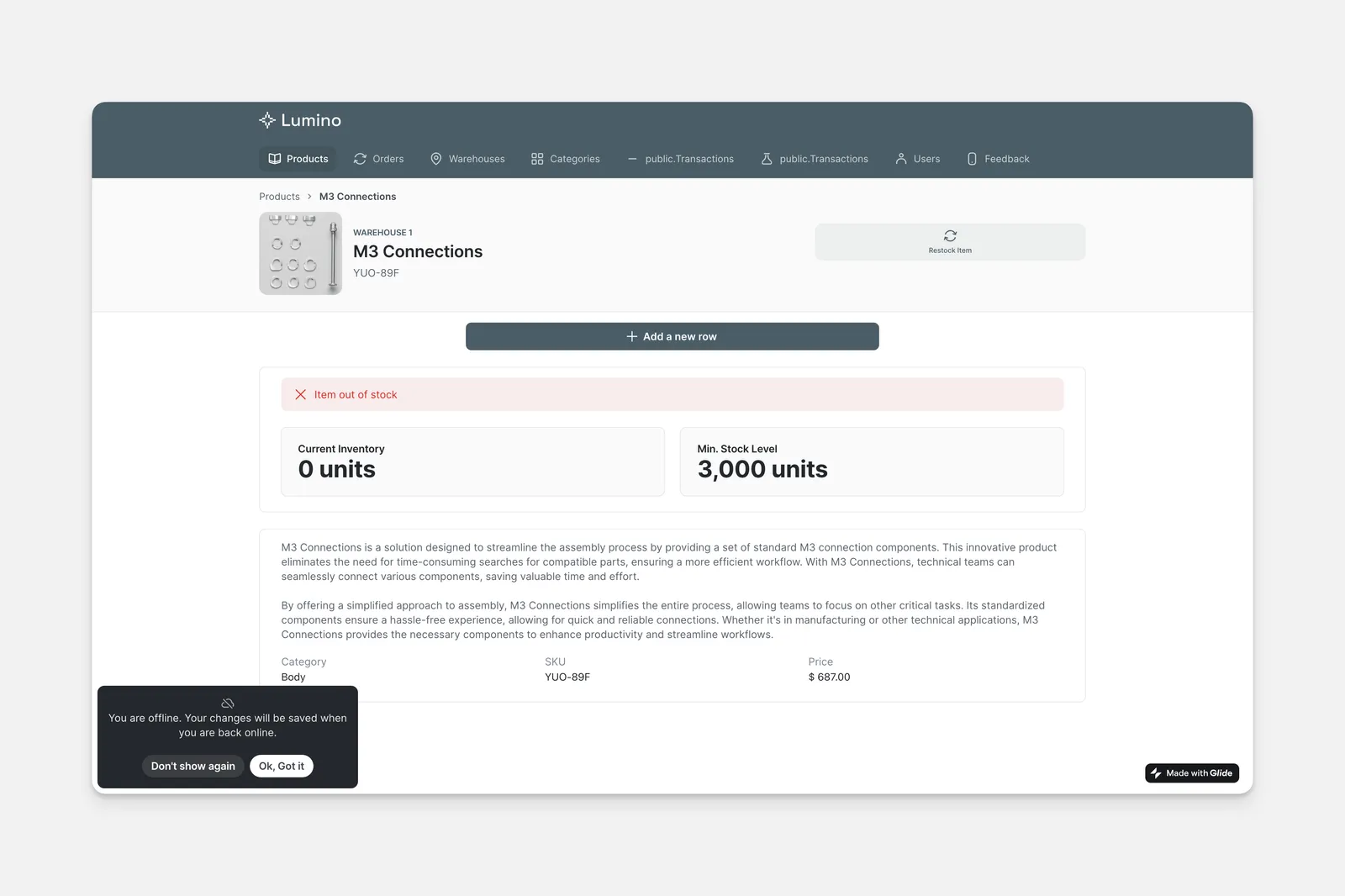
Glide apps are progressive web applications. They operate similarly to a website. For offline mode to work, the end user must load the application on their device. If they lose connectivity, the user can still submit Glide Forms. The data submitted is stored locally on the device, and once connectivity is regained, the data is pushed to your data source.
Check the Introduction to Actions page for a full list of components that can be used to trigger actions.