

Roles
Roles are a convenient way to assign user permissions or access groups to specific parts of your app’s data. For example, you can create an Admin role for users who need access to everything, and a Reader role with access to only specific tabs or data.
There are two primary ways to use Roles.
- You can use Roles on their own in Conditions. This allows you to hide or show different parts of your app’s UI or create conditional actions based on the different roles of your users. However, conditions are not security features. Your app can still download data in the background even if UI or records are hidden.
- To securely restrict access to certain data you should use Roles in conjunction with Row Owners.
This article will go through how to use Roles with Row Owners. To learn more about conditions, check out our guide here.
What are Row Owners?
If you have a table from your data source that you’d like to secure so that only certain users can access certain rows, you can assign an Email column as the Row Owner. When this is done, only that specific user will be able to download the data for that specific row when the published app is accessed.
You can assign more than one email column as a row owner to give more than one user access to a particular row. However, if you have many users who consistently require access to particular rows, or if you need to automatically give new users access to particular rows, a simpler approach may be to use Roles.
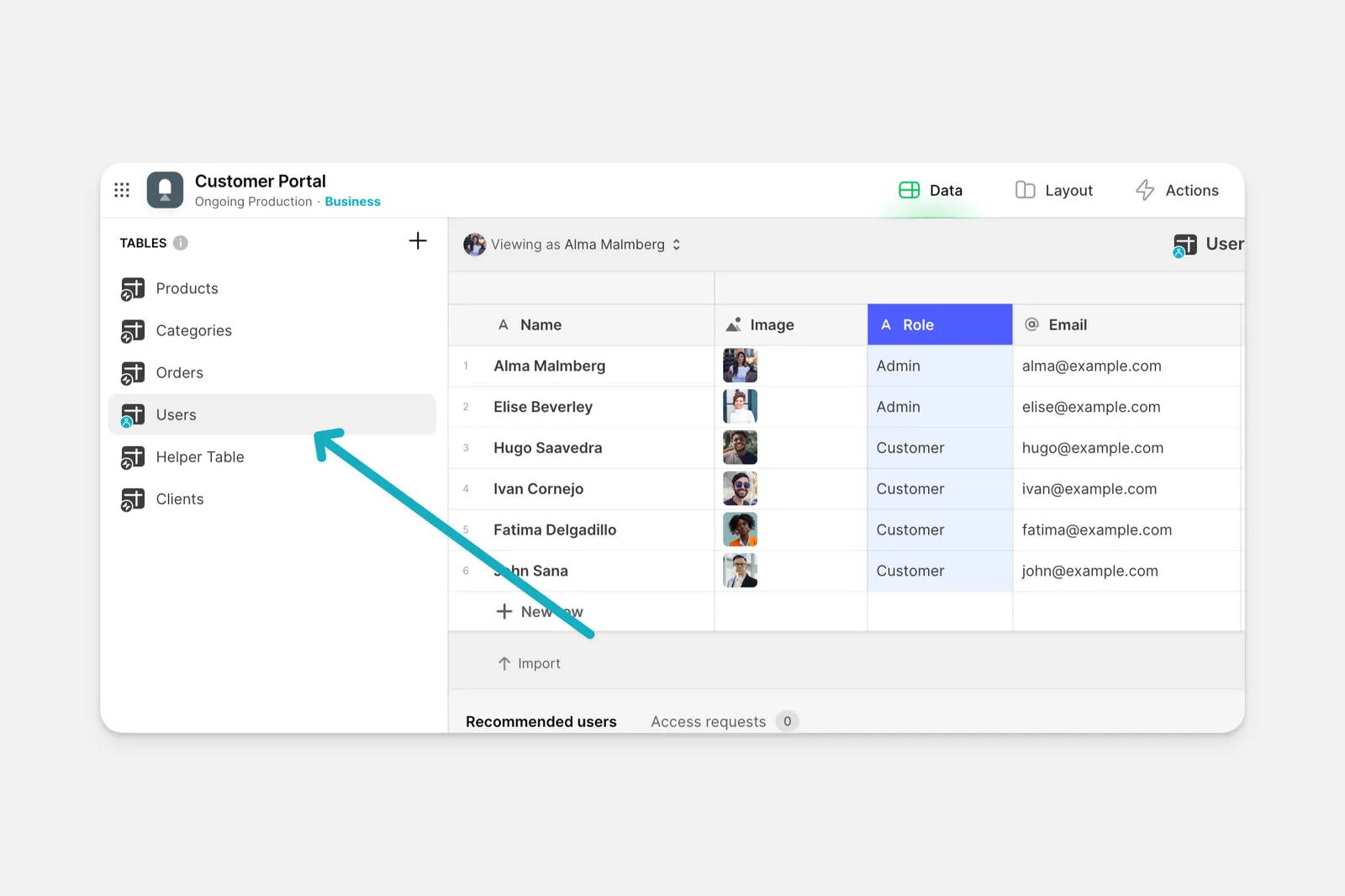
Setting up Roles with Row Owners
To use Roles:
Assign that column from your Users table in the Role field of the User Profile configuration in the Layout Editor.
You cannot use Computed Columns such as Make Array or Template columns as Roles. However, you can use a Multiple Texts column populated via workflow to assign multiple roles.
Once you’ve set the Role column in your User Profile table, you can start securing the data in other tables of your app based on each user’s designated role.
Now, each user that is assigned the role that is noted in the Role column of your table will be granted access to that row’s data.
When using the Data Editor, you are able to view all of the data in your apps. When Row Owners are enabled, some rows of data may be greyed out based on which user is viewing the data. Greyed out rows are not downloaded to that user’s device in published apps.
Frequently Asked Questions
Can I give more than one role the same permissions?
You can add as many Row Owners to your data source as you’d like, so you can give multiple roles access to your data if needed. For example, if you have a table of Inventory data that both a Manager role and an Employee role should be able to access, you can add two role columns to the Events table and assign them both as row owners. Now, both Managers and Employees will have access to the rows of data. Alternatively, when using a Multiple Texts column for roles, users with any matching role in their array will have access to the row.
How can I secure new items added to my collections?
If you let your users add items then you may want to automatically secure the row that gets added and make it accessible only to people with the same role as the person who added it. This is possible with the use of User Profile Columns.
Can users set their own roles in an app?
Users cannot set roles from an app. This is a security measure to keep your app safe from potential misuse by a user. If a new user signs up for a User Profile in your app, they won’t be assigned a specific role. Glide will leave the role field blank, and you can assign roles to new users in your user table. However, when using Multiple Texts columns for roles, you can set up a manual workflow that updates roles, then trigger that workflow from the app (e.g., via form submission).
Can users change their roles in the app?
Users cannot directly change their own roles. However, when using Multiple Texts column for roles, app builders can set up workflows that allow authorized users (like admins) to change other users’ roles.
What if I use Google Sheets as the source of my user profile table?
If your User Profiles table has Google Sheets as its data source, you can assign multiple roles for each user. To do this, in your Google Sheet, create columns with the same name and then number each one sequentially. It’s important that each column has the same exact text and then the next number in each column. For example, Role 1, Role 2, and Role 3. Glide will then interpret this as an array of roles, and you’ll be able to select this array in the Role field of the User Profile configuration screen.
Can my app automatically assign roles when new users sign up?
Yes, when using Multiple Texts column for roles, apps can automatically assign roles when new users sign up. Please note: when using the Layout Editor in Viewing as mode, the app may appear to automatically assign a role to newly created users. However, this behavior only occurs in the preview. The published app will not automatically assign roles.
How many roles can a user have in an app?
Users can have multiple roles assigned to them using a Multiple Texts column in the User Profile table. Alternatively, in Google Sheets you can name columns Role 1, Role 2, Role 3, Role 4. Glide will turn that into a column array named Role, which you can use in the User Profile Role field (e.g. admin, manager).