

Big Tables
Built for the most demanding workflows, Big Tables are enterprise-grade databases hosted directly in Glide. While a normal Glide Table has a limit of 25,000 rows, Big Tables can support up to 10 million rows. With Big Tables, your app can scale as your data grows.
Big Tables are a native Glide data source, and so they do not use updates when adding, editing, deleting, or syncing data. Data changes made with Glide API, however, still consume updates. Teams with an Enterprise plan will also use updates on Big Tables.
Synchronous Saves
When a user saves data in a Glide app they will see an indicator on the bottom of the screen showing that the data is being saved. When the data has been safely saved to the Big Table, the indicator will disappear. If there are any errors during the save, the user will see an error message.
Changes to Big Tables made in the app will be updated on the Big Table. A refresh of the app or the data in the table is not necessary. Even if the data table shows “Query” in the cell, the data has been updated and refreshed data will appear live in the app if a component is connected to it.
Creating a Big Table
You can only create Big Tables once you’ve created the app.
Select the Data Editor icon.
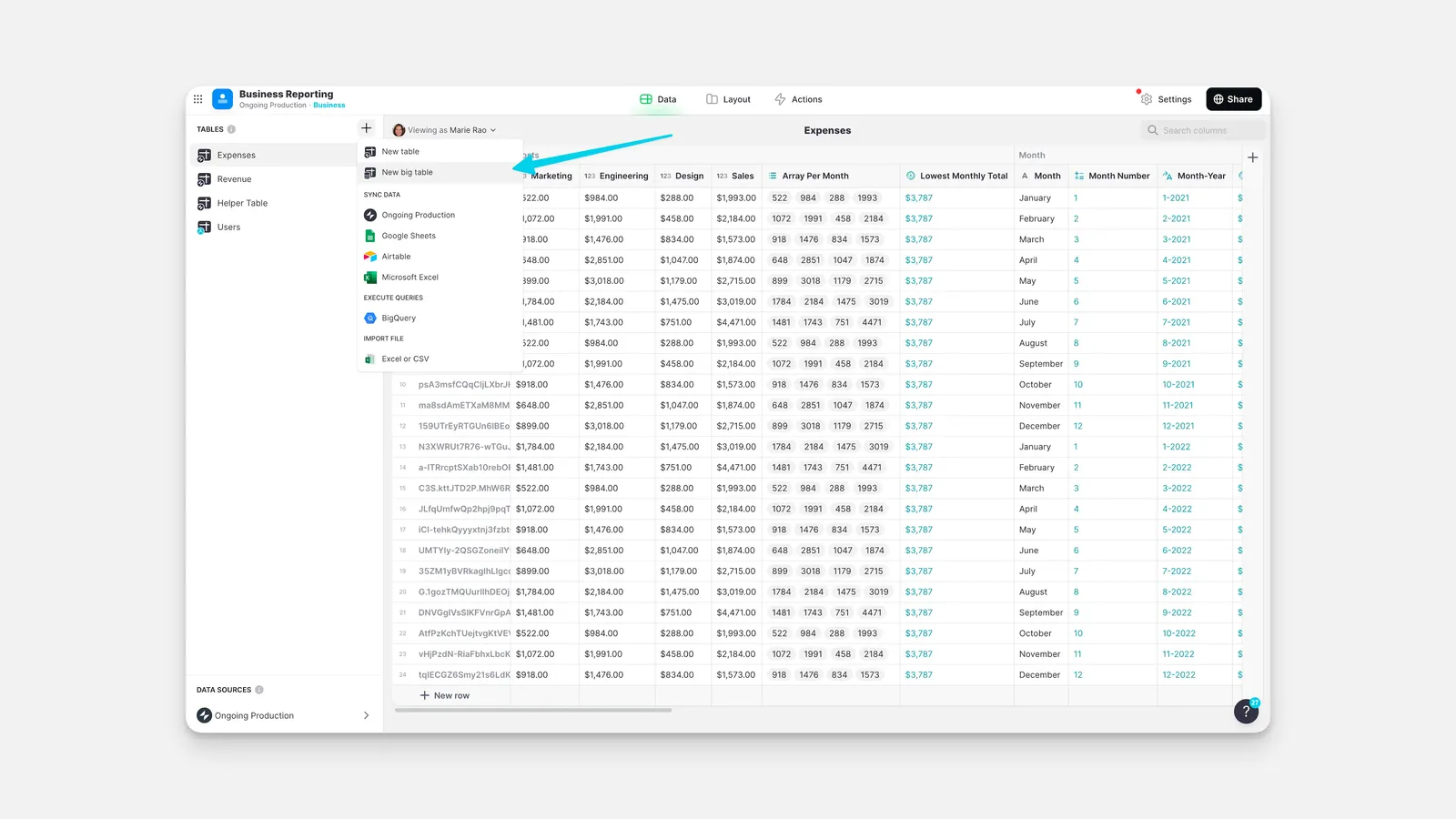
The Data Editor will create an empty table with a single cell. From here, you can add more rows and columns and configure them as you need.
Import/Export Big Table data
Import to a new Big Table
To import data into a new Big Table:
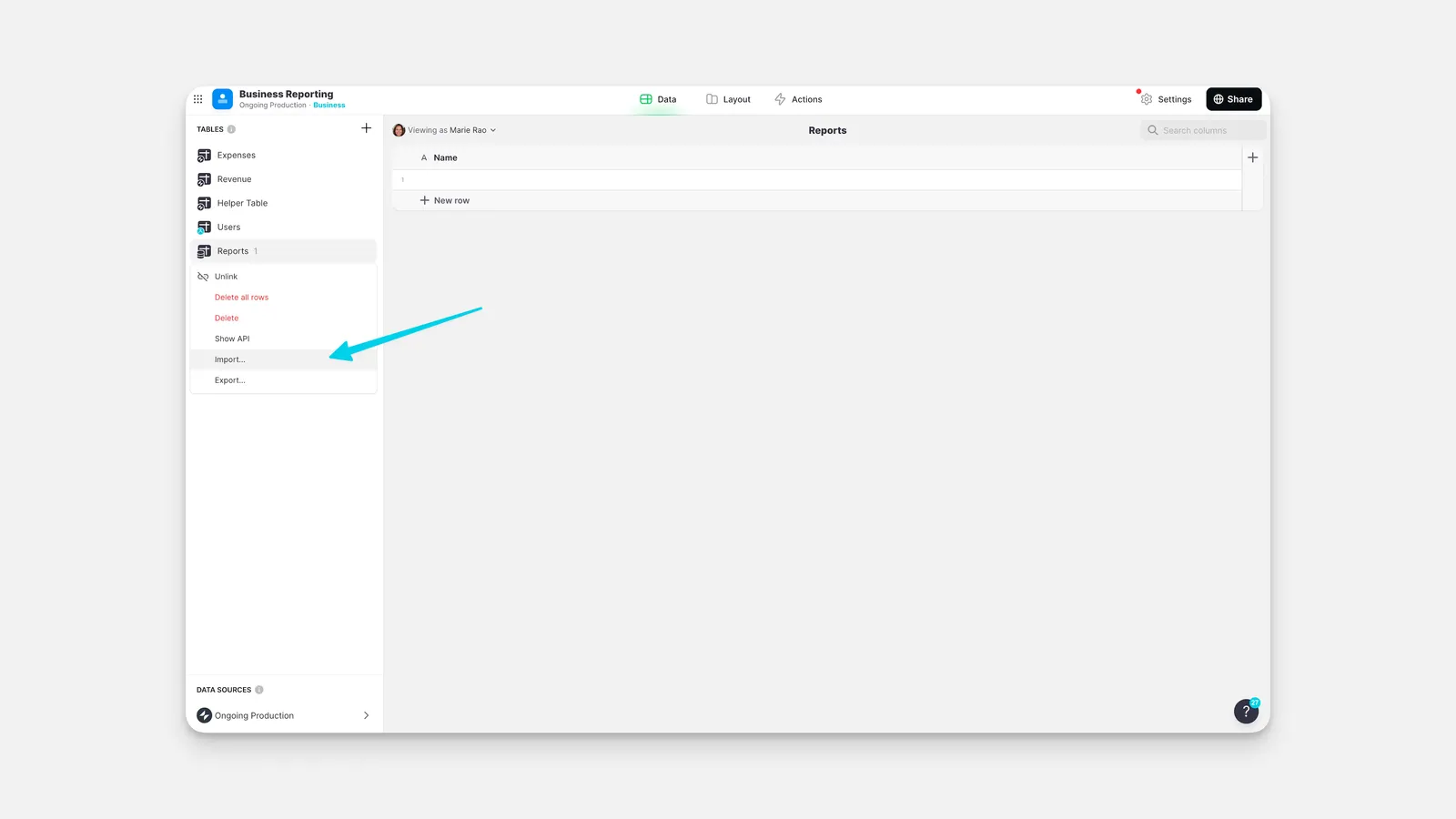
Glide data imports support .xlsx, .csv, or .ods files.
Import to an existing Big Table
To import data into an existing Big Table:
When you import data into an existing Big Table, Glide will add your rows to the existing table. It will not modify or delete the data that’s already there.
Exporting from a Big Table
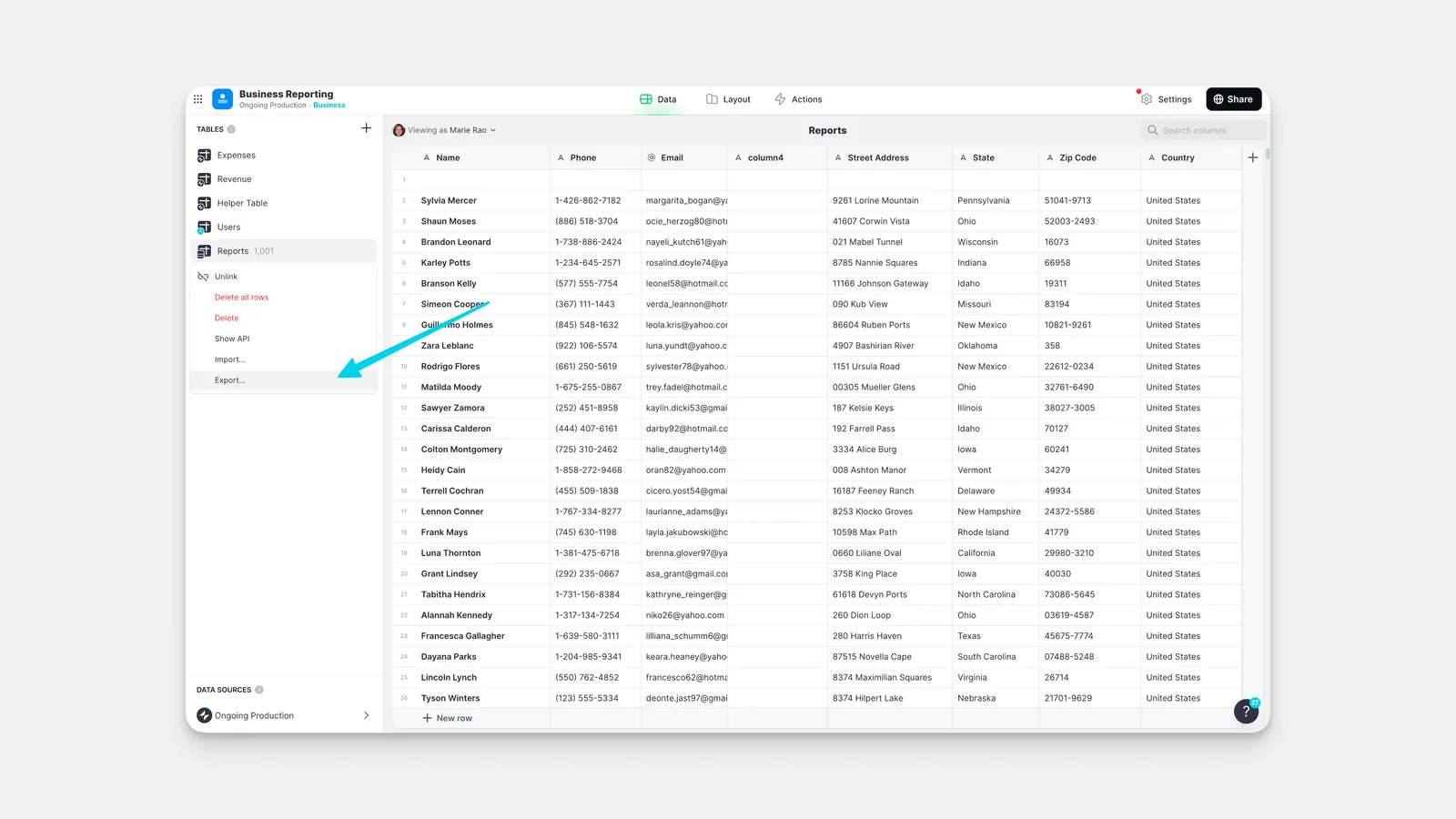
To export data from a Big Table:
Big Tables API
Big Tables can be used with Glide APIv2, a RESTful API. Read more at our advanced API documentation.
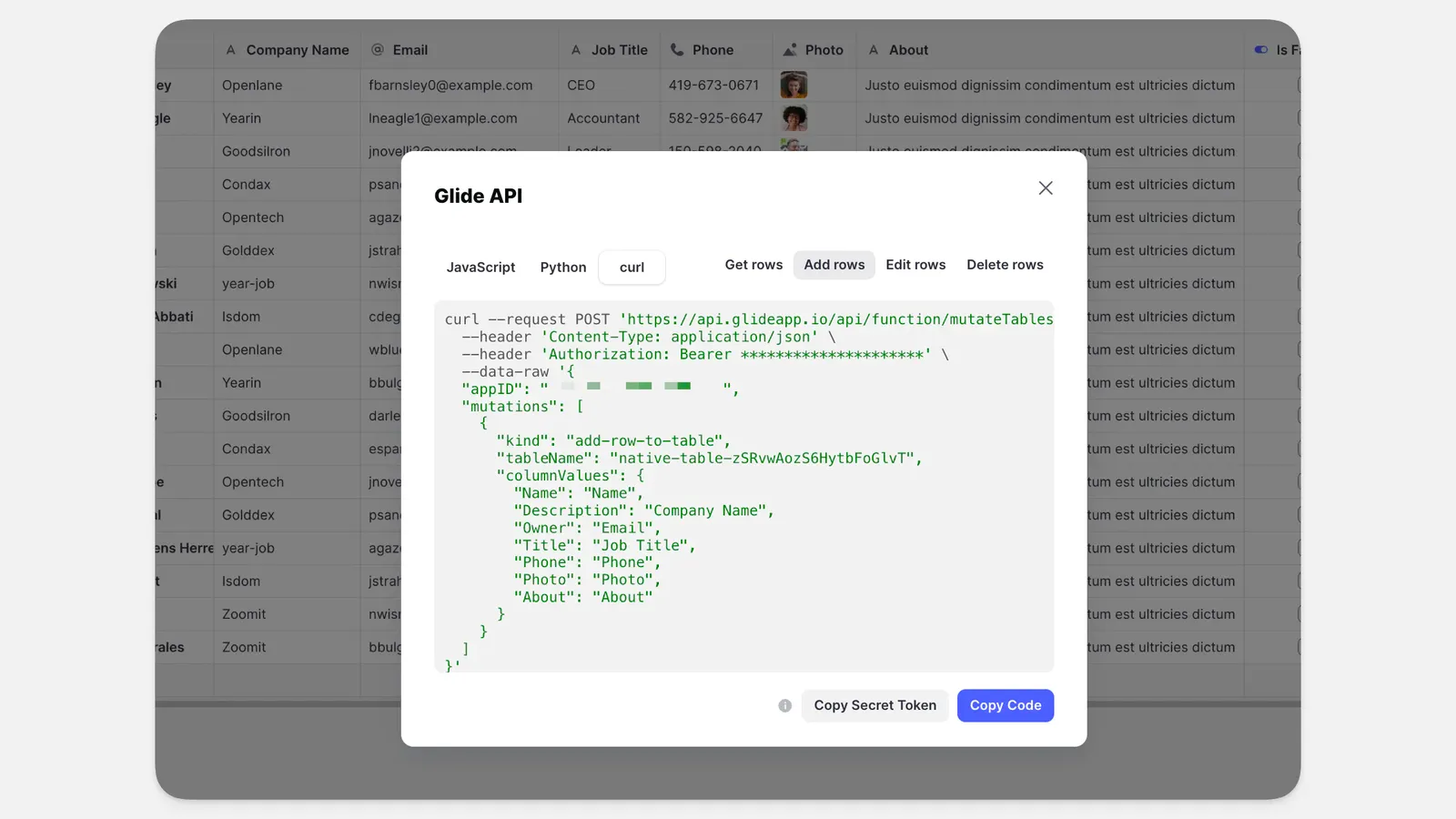
You can also use an API to add rows, set columns, or delete rows from a Big Table. To use an API to add rows, set columns, get all rows, or delete rows from a Big Table:
- In the Data Editor, right-click on the Big Table you want to connect with.
- Select Show API.
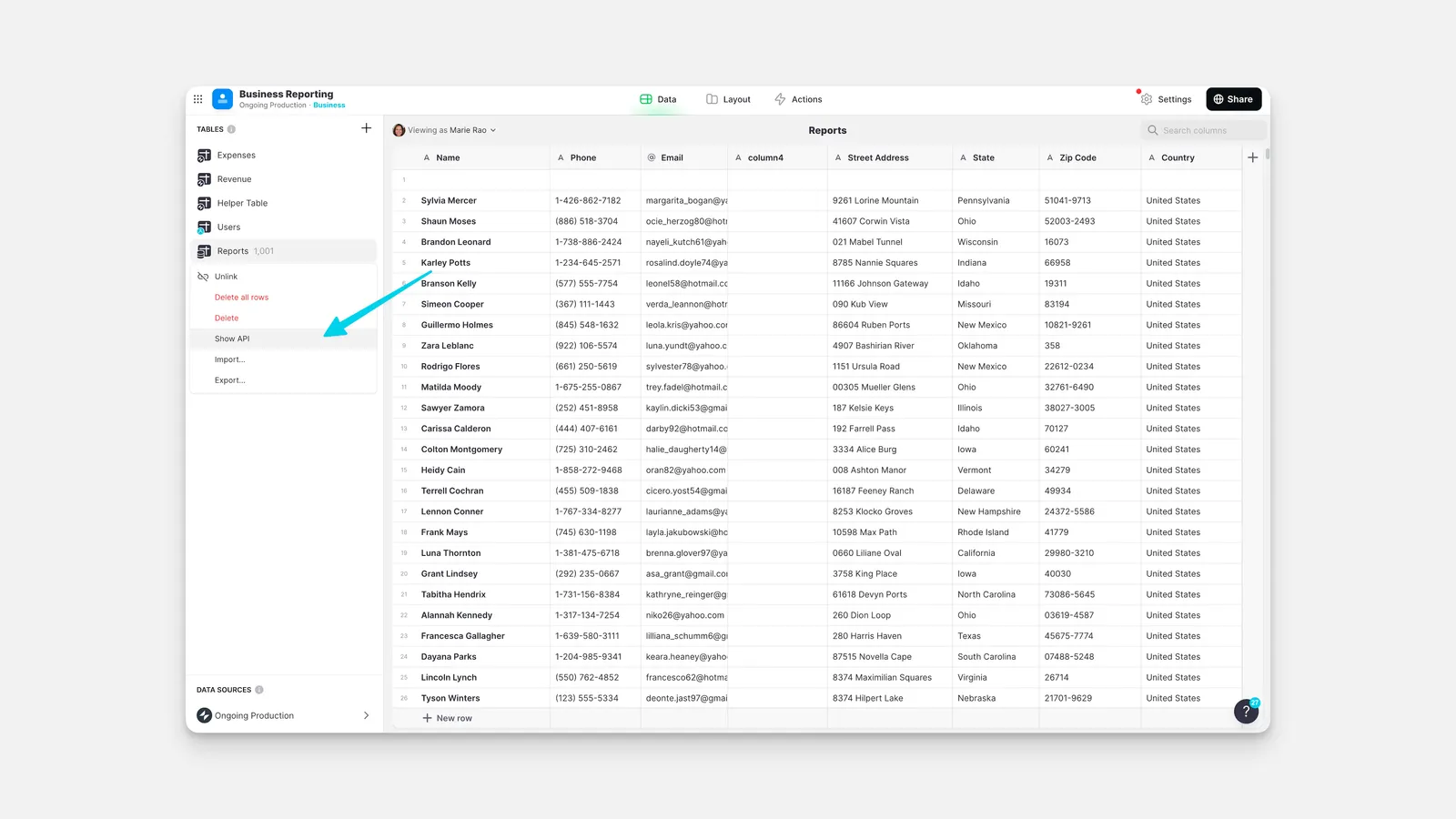
- The API usage provides examples for JavaScript, Python, and curl. Select one, then choose from either Get rows, Add rows, Edit rows or Delete rows, then click the Copy Code button to copy the API instructions to your clipboard.
Big Tables Audit Log
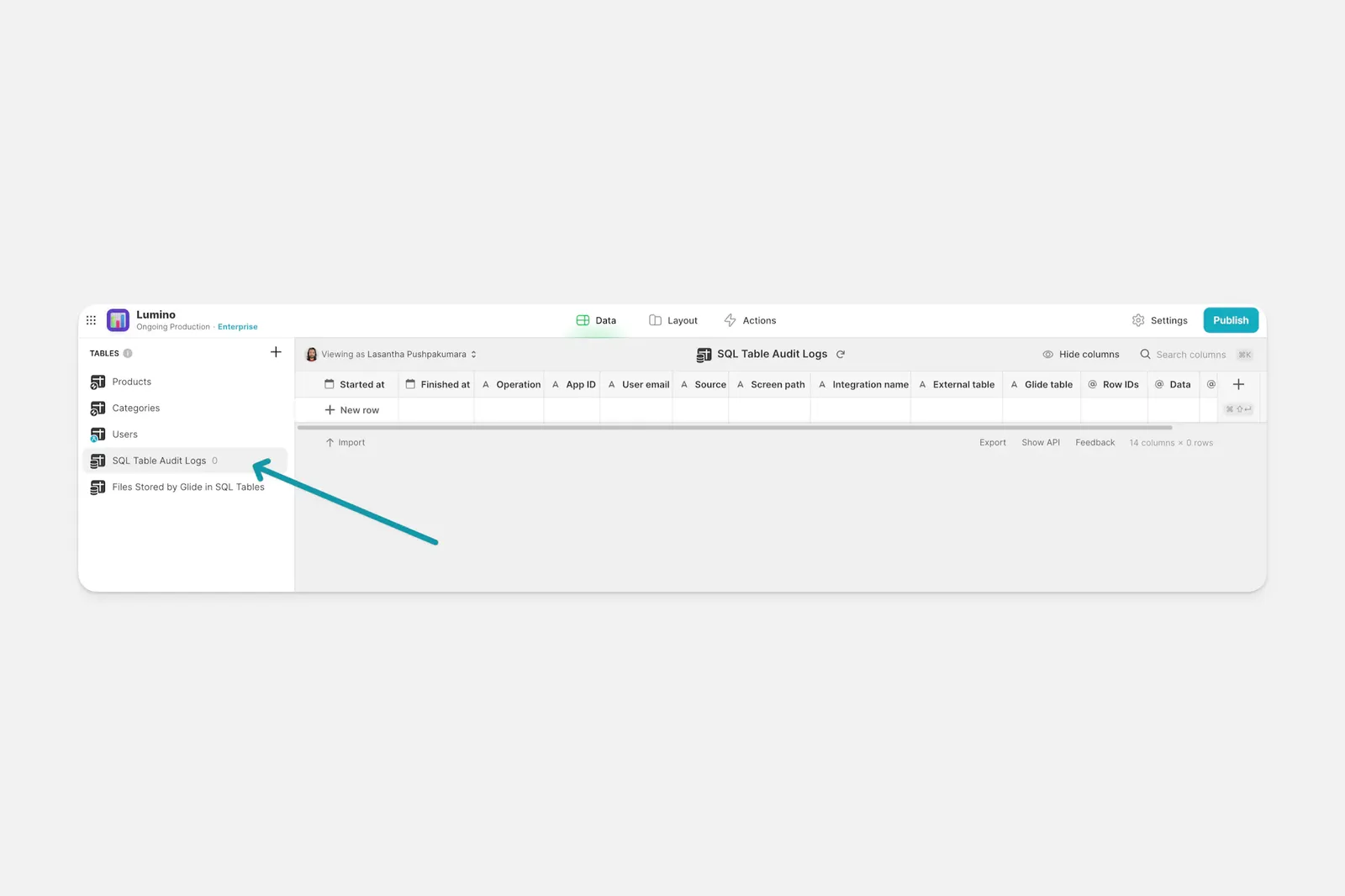
When you make changes to a Big Table via the API, an audit log is automatically generated to keep track of any new data that is written to your Big Table. This audit log will appear as a Big Table in the Data Editor called GBT/SQL Table Audit Logs and is read-only. The table cannot be deleted, but it can be renamed. The columns in the table also cannot be changed.
If you previously had a SQL source synced to your app, there will already be an audit log in the Data Editor called SQL Table Audit Logs. This same log will be used for your Big Tables audit information.
Limitations of Big Tables
There are some features in Glide that aren’t compatible with a Big Table. These unavailable features are:
- Single Value columns: Cannot target a Big Table directly but work via Multiple Relations or Queries. Only Single Value → First is supported.
- Lookups into Big Tables (eg. Lookups via Multiple Relations or Lookups that target an entire Big Table column) are supported in Multiple Relations and Queries but limited to 100 matching rows.
- Rollups and Joined Lists: Work with most computed columns but are limited to 100 matching rows.
- Delete Rows action: Cannot be applied through a multi-relation in Big Tables.
- The User Profile data source cannot be a Big Table.
- Aggregations in general are limited to 100 matching rows.
Frequently Asked Questions
Can I use Big Tables in my existing apps?
Yes!
Where is my data export?
When you export data, it will be emailed to the email address associated with your Glide account.
Why does my column show "Query" in every cell?
Some computed columns in Big Tables will show “Query” in the column rather than immediately displaying data. Because Big Tables save synchronously, this data is refreshed even without the “Query” text being clicked. Data from these columns can be used in the layout editor and will update synchronously, without a manual query.