

Print Screen to PDF
Print Screen to PDF is available on Business and Enterprise plans. Browse our plans to find the right fit for you.
The Print Screen to PDF action captures the current screen of a Glide app and generates a PDF file from it. This is useful for creating printable records, reports, or snapshots of app screens on demand.
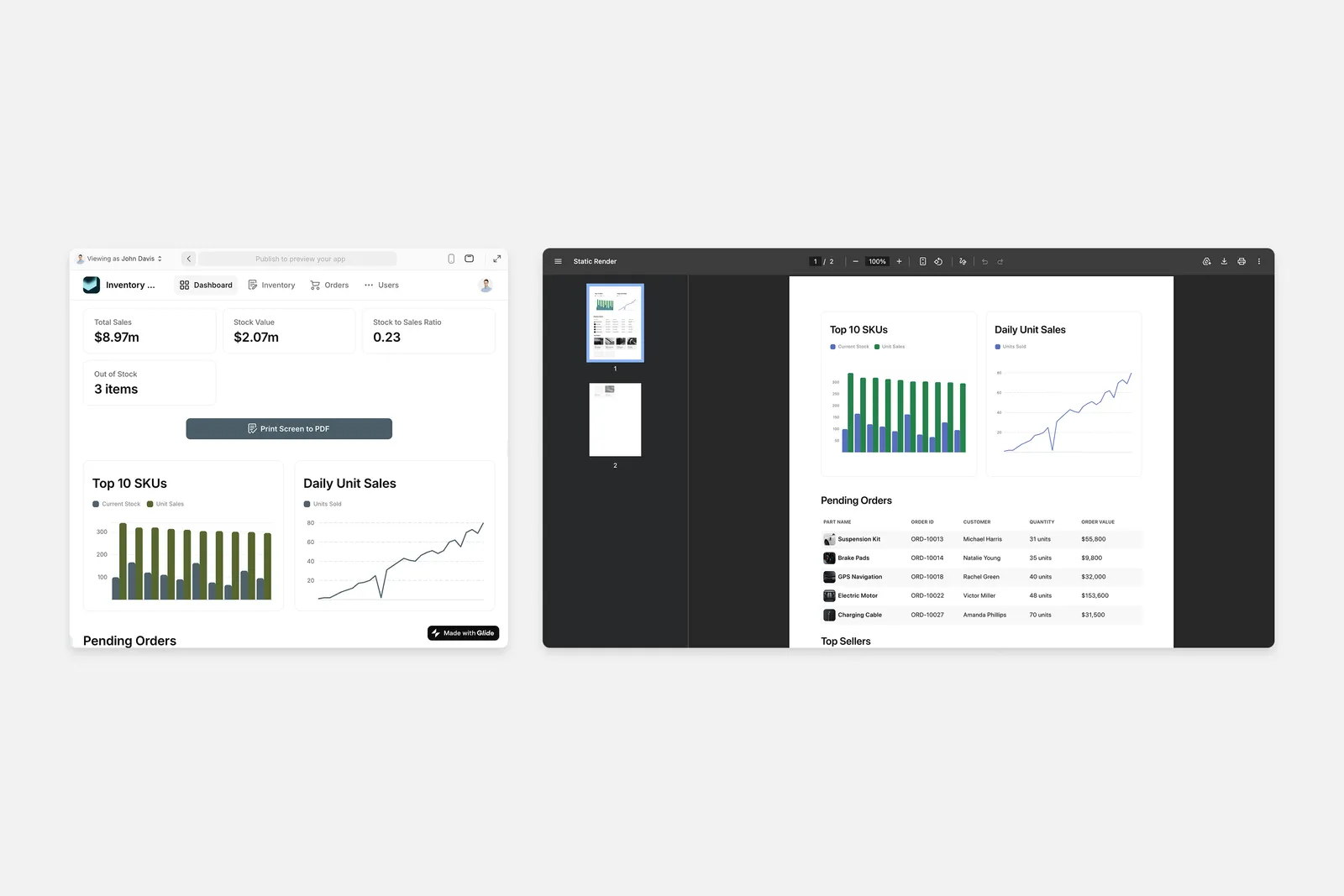
When the action runs, Glide captures the current screen and renders it as an A4-format PDF. The PDF generates asynchronously—the URL is available in the designated column immediately, and the PDF renders in the background. The action stores a temporary URL to the generated PDF in a designated column.
Adding and Setting up Print Screen to PDF
The Print Screen to PDF action creates a temporary URL available for 1 hour. This URL is a link to the PDF that can be saved, printed, or shared. To configure the Action, you’ll need a column in the Data Editor to store this URL.
Each time the action runs, it uses 1 update. The generated URL is temporary and expires after 1 hour. To save it beyond 1 hour, create an Upload File action to store the URL.
Data Editor
Layout Editor
Workflow Editor
Create a column to store the temporary PDF URL before configuring the action.
Open the Data Editor and select a table to store the URL.
Controlling component visibility in the PDF
Components on the screen include a Visible in PDF setting in the Options tab. This controls whether the component appears in the generated PDF.
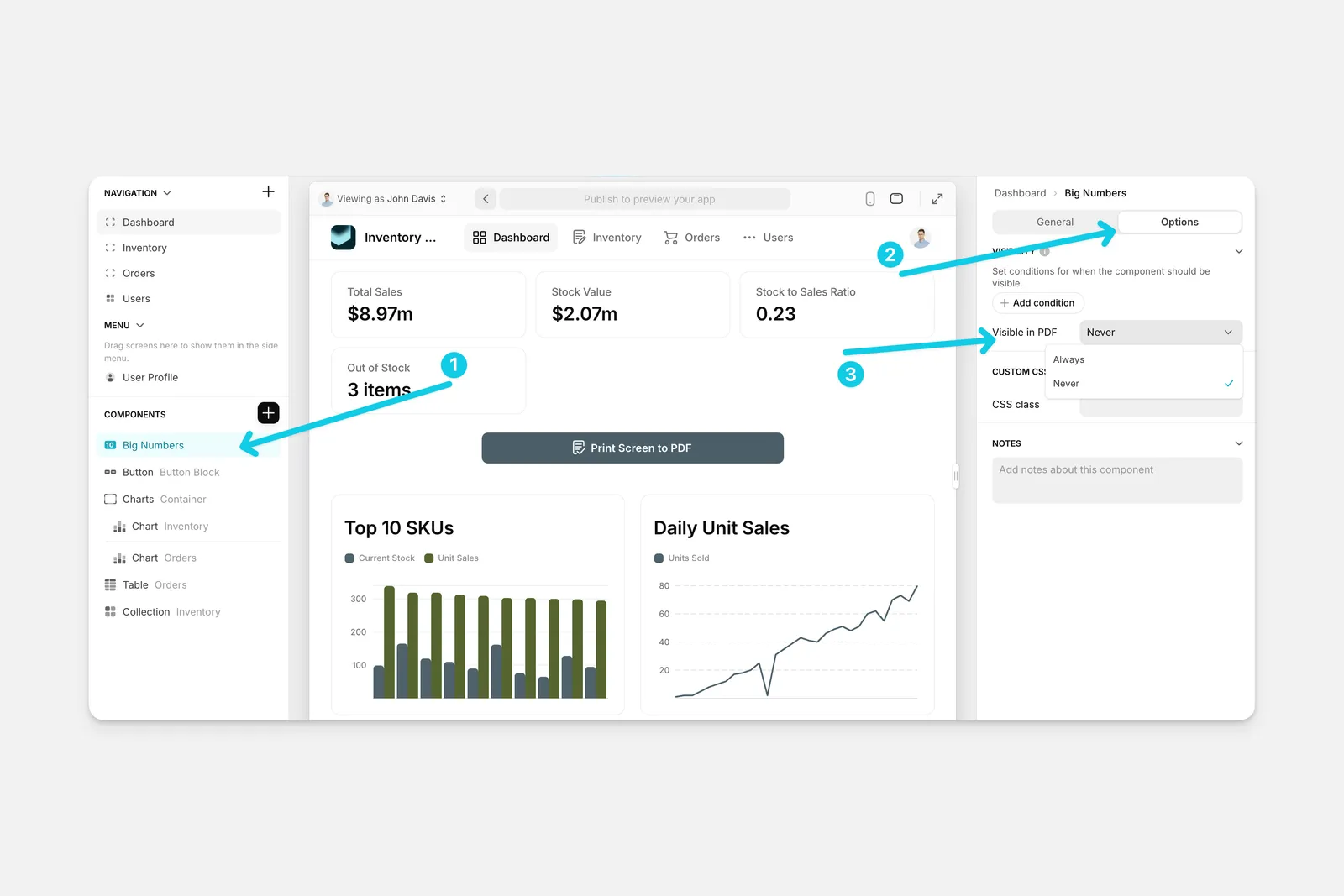
The Visible in PDF dropdown has two options:
- Always — The component appears in the PDF. This is the default for most components.
- Never — The component is hidden from the PDF.
Some components are always hidden from the generated PDF regardless of this setting: Location, Audio, Audio Recorder, Barcode Scanner, and Spinner.
Interactive elements are automatically cleaned up in the PDF. Buttons, input placeholders, and other interactive UI elements are removed or simplified to produce a clean, print-ready document.
Frequently Asked Questions
Which plans include Print Screen to PDF?
Print Screen to PDF is available on Business and Enterprise plans. Review our plans and pricing here.
How long is the generated PDF URL valid?
The temporary URL expires after 1 hour. To save the PDF permanently, use the Upload File action to store it before the URL expires.
Does the PDF include all components on the screen?
Most components are included by default. Each component has a Visible in PDF setting in its Options tab to control whether it appears. Some components—Location, Audio, Audio Recorder, Barcode Scanner, and Spinner—are always excluded. Interactive elements like buttons and input placeholders are automatically cleaned up.
How many updates does this action use?
Each time the Print Screen to PDF action runs, it uses 1 Update.