

Discord
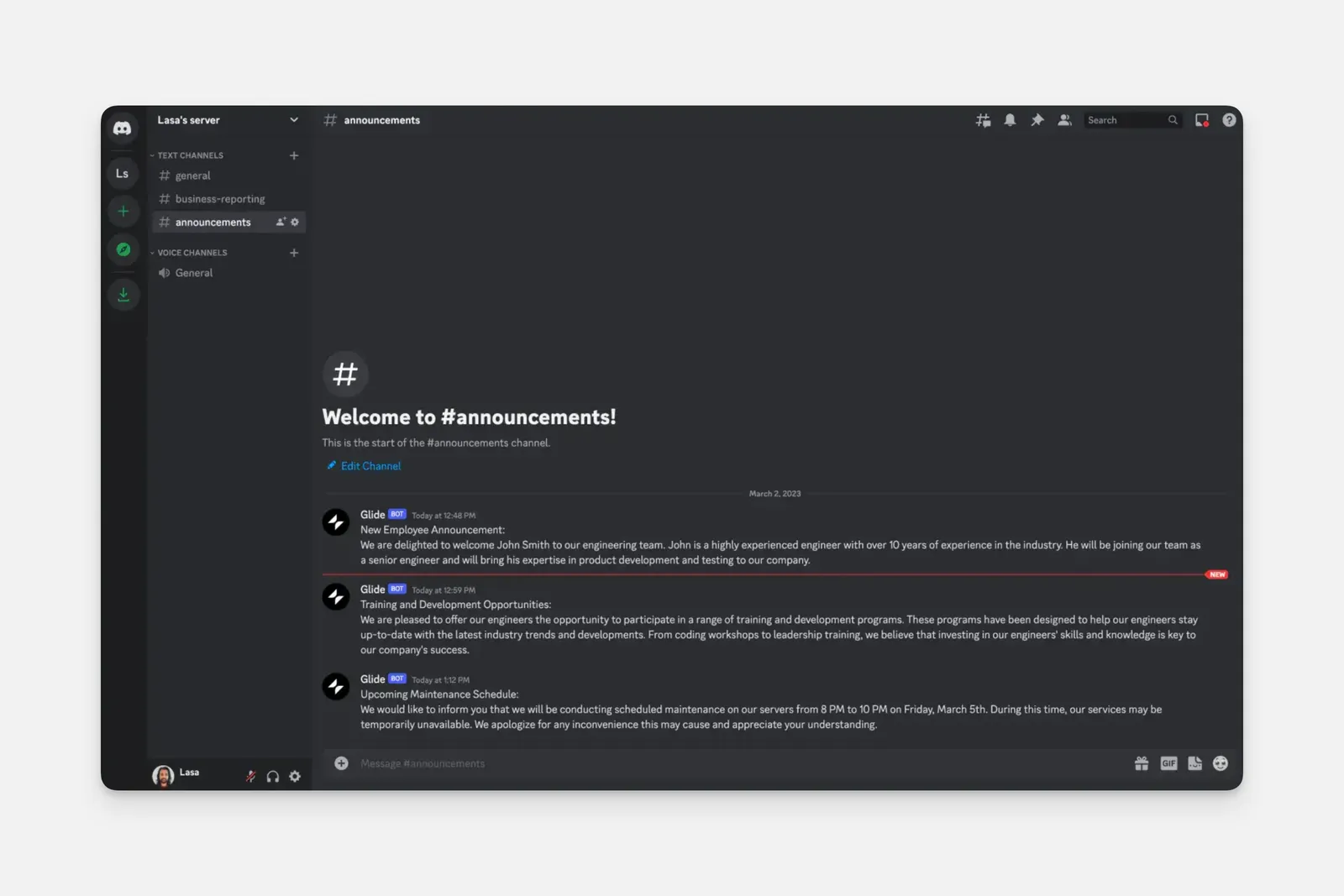
Discord is an instant messaging and voice call platform similar to Slack or Microsoft Teams. With the Discord integration, you can send messages to channels in your Discord server from a Glide app.
You may need to upgrade your plan. Browse Glide’s plans and find the right fit for you.
Adding and Configuring the Action
Click the Integrations tab and then select Discord.
Features
Send message to channel
The Send message to channel action can send a message to your Discord server. To use it, a Channel ID for the Discord channel where the message should be sent is required. You will also need to include message text, which you can enter manually as a custom value or pull from a column in your data.
The action can be added to a Component that supports Actions (e.g., a Button component), added to a workflow in the Workflow Editor, or after a Form is submitted.
To learn more generally about Integrations in Glide, including how they affect your app’s usage, check out our Introduction to Integrations.
Frequently Asked Questions
Don't see the Discord integration?
You may need to upgrade your plan. Browse Glide’s plans and find the right fit for you.
Can I use the Discord integration with any Discord server?
No, you must have manage server permissions in the Discord server you want to add. Read more about Discord permissions here.
Can I make more than one bot for my app?
No, you can only have one Discord bot per app.
How do I connect my app to a different Discord account or server?
You can connect a different Discord server to your app by first disconnecting the connected Discord server. To do that, navigate to the Discord integration in your app’s settings. Click Remove from app. Next, click Add to app to connect a different Discord account and/or server.