

Single Sign-On
Team SSO lets you connect Glide to your organization’s identity tools like Okta, Azure AD, Google, and more. Configure SSO once and use it across every app in your Enterprise team. Team SSO is compatible with any Identity Provider (IdP) and supports both SAML and OIDC protocols.
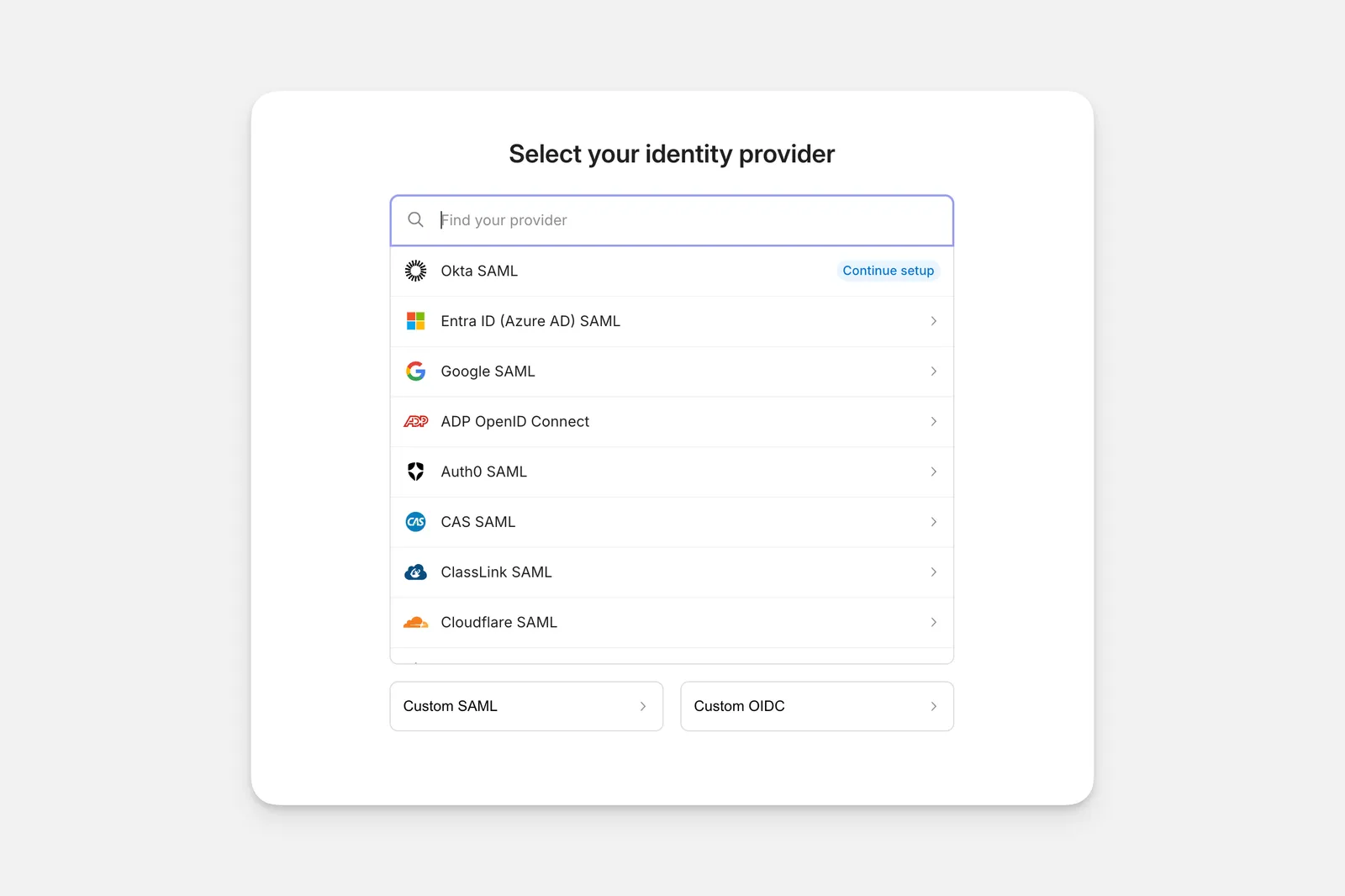
Team SSO is available as an add-on for Enterprise plans. Contact sales at sales@heyglide.com to get started.
Setting up Team SSO
To set up Team SSO for your team, configure it in any app within your team. Once configured, it becomes available for all apps in that team.
Note that an IT administrator will likely be needed to assist with this setup, as it requires secure information from your identity provider.
Adding SSO to other apps in your team
After the initial Team SSO setup, you can enable SSO in your other apps without reconfiguring it.
Configuring App Settings for SSO
Access
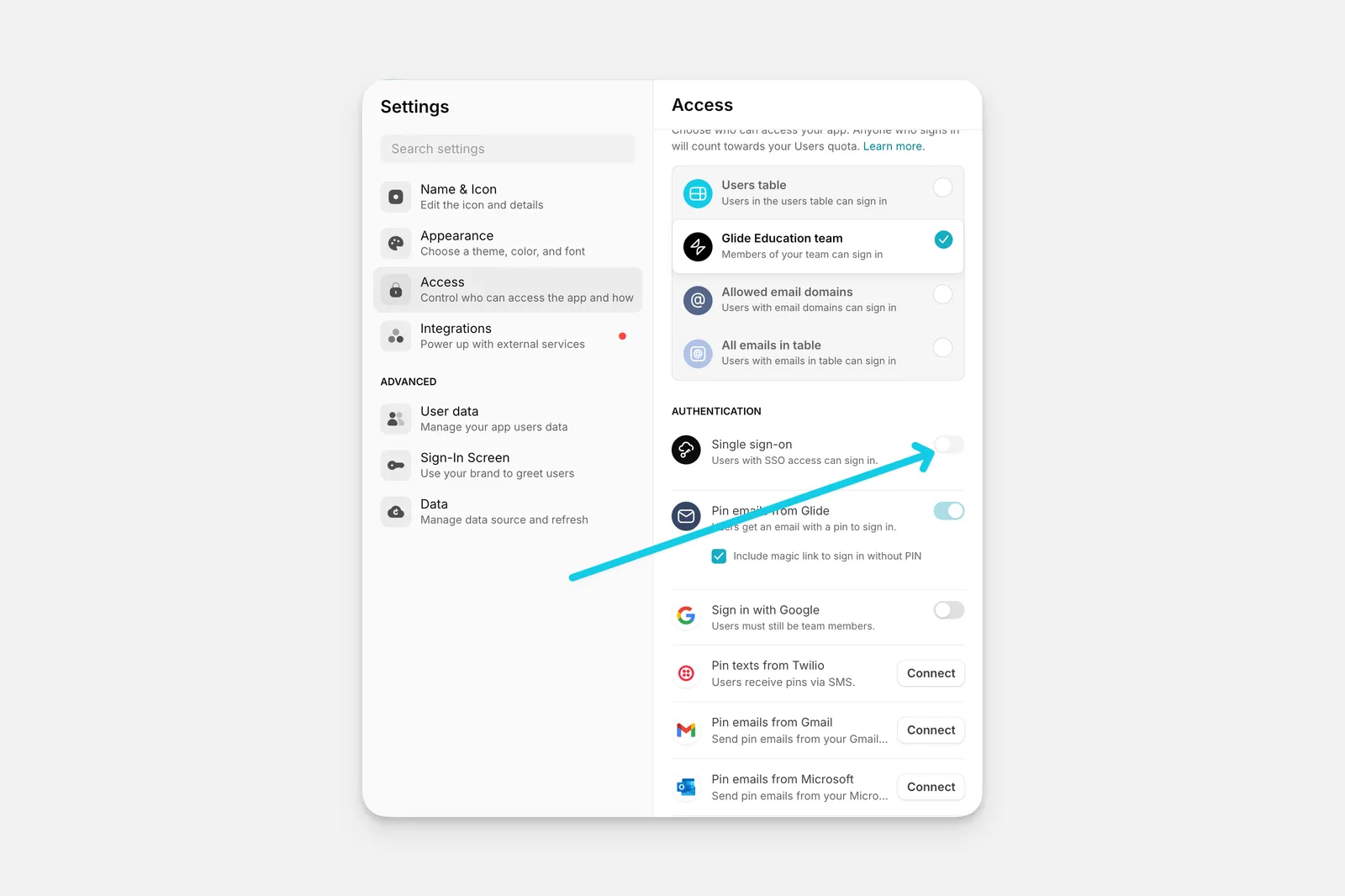
In your app’s Access settings, you’ll see the Single sign-on option under the Authentication section. Once you add the SSO integration, you can toggle Single Sign-On on or off at any time.
Authentication
In the Access menu, you can make adjustments to how your users will sign in to your app. You can use multiple authentication methods in the same app. SSO can work alongside other methods like PIN emails and Sign in with Google. This lets you support different types of users in the same app.

When SSO is enabled, the Access Requests option will disappear.
If you would like to use only SSO for authorization, make sure you disable PIN emails. This will not be disabled automatically, so you can decide when you are ready to disable this option. Note that when you disable PIN emails, users will no longer see the option to manually enter their email address. They will only see the sign in with SSO button.
Sign-in Screen
When you enable SSO, there will be a new option for the sign-in screen to add a button for SSO. You can customize what the text on this button says.
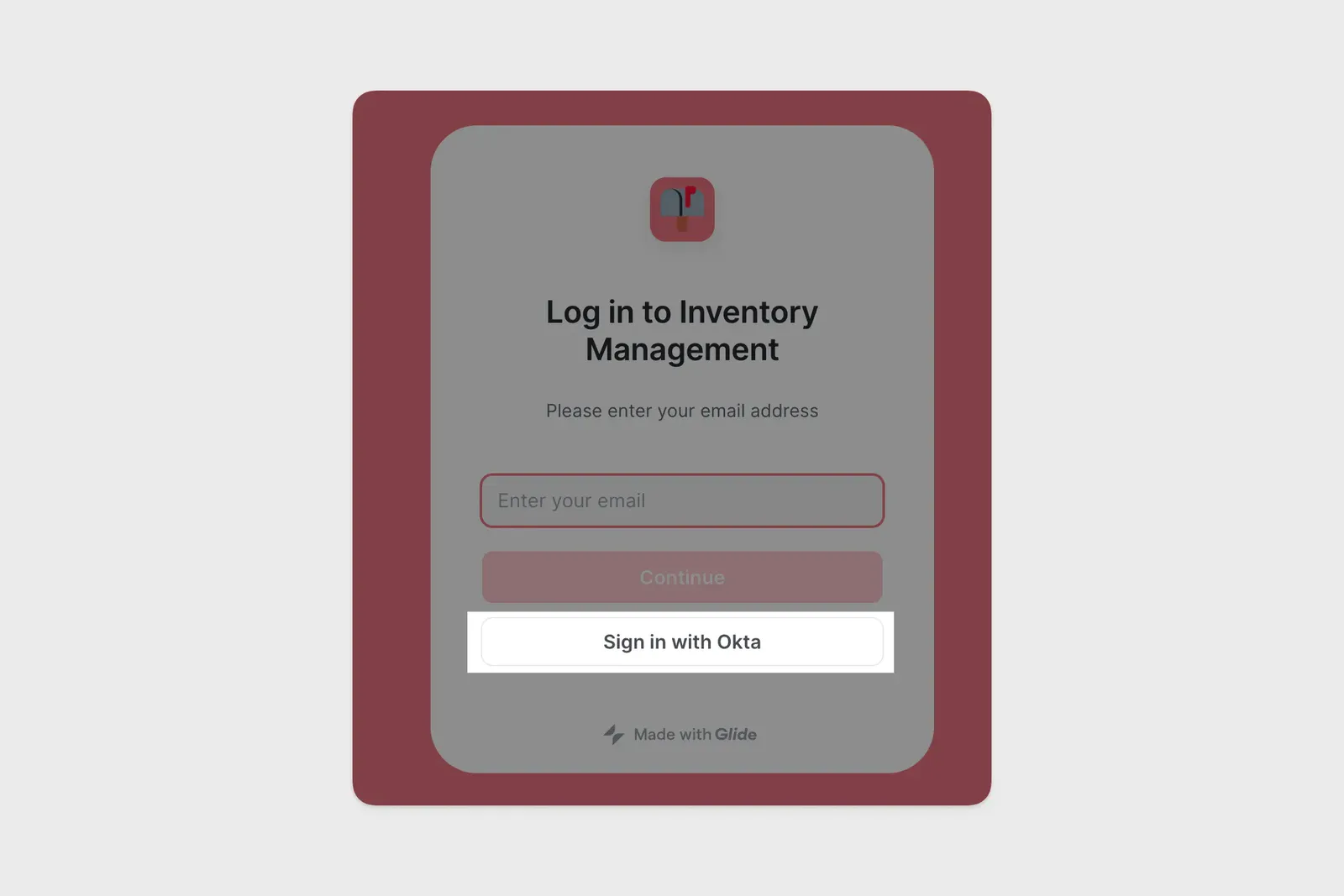
This sign-in screen option will not be available unless SSO has been fully configured and tested.
Testing Your SSO Integration
Before making your SSO integration live, we recommend testing the sign in to ensure that it’s working properly. The SSO setup wizard will confirm if sign in is successful, or if there are any issues that need to be resolved.
The SSO Dashboard
The SSO Dashboard allows you to review your SSO connection, metadata configuration, and user sessions. You can configure, reset, and test the connection to your identity provider, copy or edit your metadata as needed, and review sign in attempts that your users make. You can filter session by state (All, Authorized, Failed, Started, or Successful).
Clicking into an individual session will display the session ID, user ID, timestamp, name, email, and session type. You can also see the full SAML request and SAML response, and copy them if needed.
Removing SSO
You have two options for removing SSO: disable it in a specific app, or remove it from your entire team.
Disabling SSO in a specific app
To stop using SSO in one app without affecting other apps in your team:
This disables SSO for that specific app only. Other apps in your team can still use SSO.
Removing SSO from your team
To remove Team SSO from your entire team:
This removes Team SSO from your entire team. If you’re removing SSO as your sign-in method, we recommend choosing another secure sign-in method for your apps.
Frequently Asked Questions
What identity providers does Team SSO support?
Team SSO works with any Identity Provider (IdP) that supports SAML or OIDC protocols, including Okta, Azure AD, and Google.
Does Team SSO work across all apps in my team?
Yes. Once you configure Team SSO, it works across every app in your Enterprise team. You don’t need to set it up separately for each app.
What happens to my existing per-app SSO setup?
The per-app SSO integration is deprecated. If you’re currently using per-app SSO, contact your account manager about migrating to Team SSO.
Can I set permissions from my SSO provider?
No, permissions cannot be set from the SSO provider at this time.
Can other authentication methods be enabled when I use SSO?
Yes, PIN and Sign in with Google are still available and can be used alongside SSO.
Can I add multiple identity providers?
No, Glide only supports 1 SSO provider per team.
Do users instantly lose access when I disable SSO?
No, users can access a Glide app for up to 24 hours after removing access from the SSO provider.
Can I use different SSO providers for different apps in my team?
No. All apps in your team share the same SSO configuration and identity provider.