Teams
Creating a team
To create a new team, click on + New team on the left side of your Glide Dashboard. This will prompt a pop-up that will ask you for information about your new team. Fill out the info to add your new team.
Adding team members
When you create a new team, Glide will prompt you to add your team members during the creation process. You can also add members manually once you’ve created your team. Only team admins can invite new members.
From the Apps section
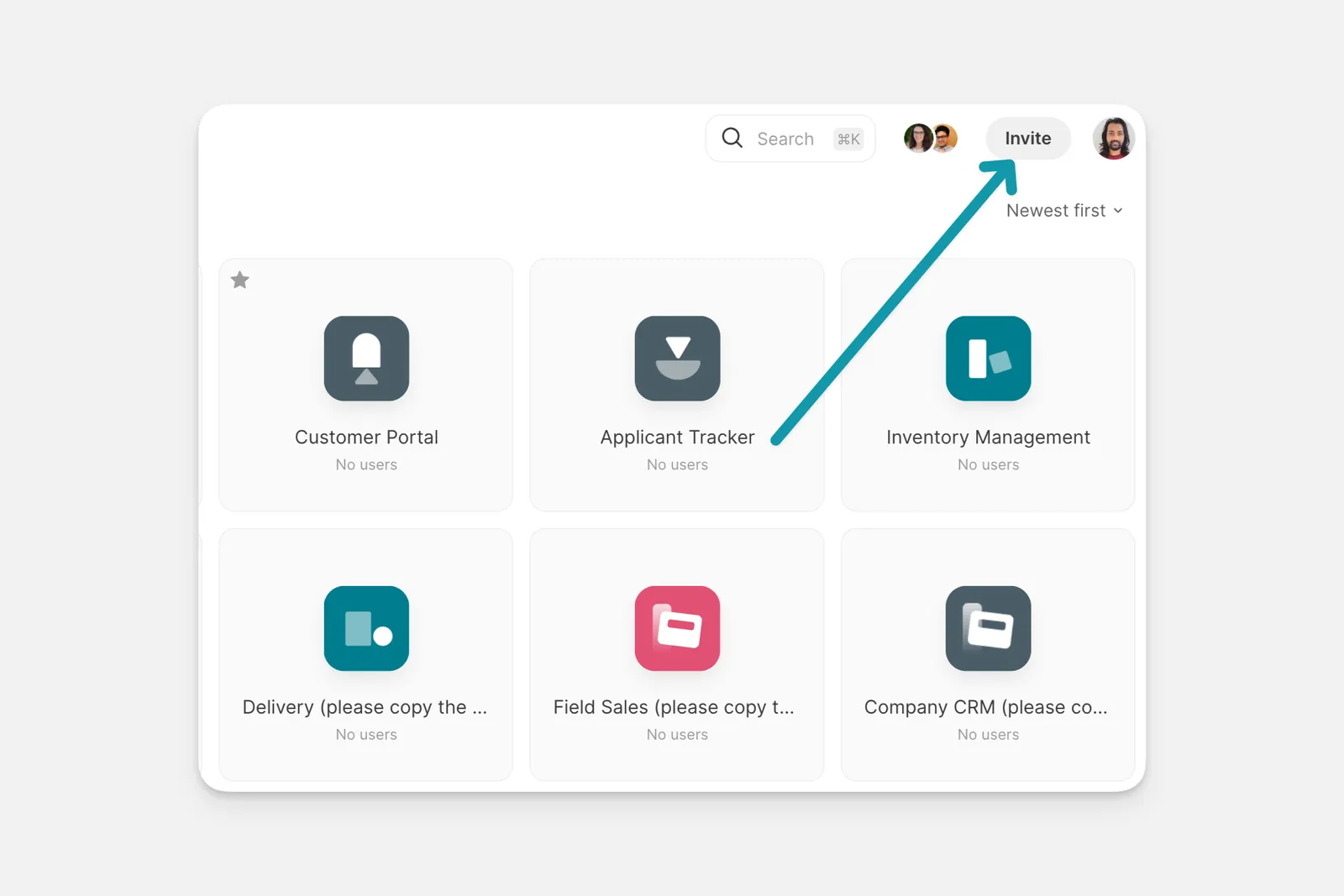
From the Apps section of your Team folder, team admins can click on the + Invite button. Members can be added by entering their email addresses directly or by sending a link through the Invite via Link option.
From the Members section
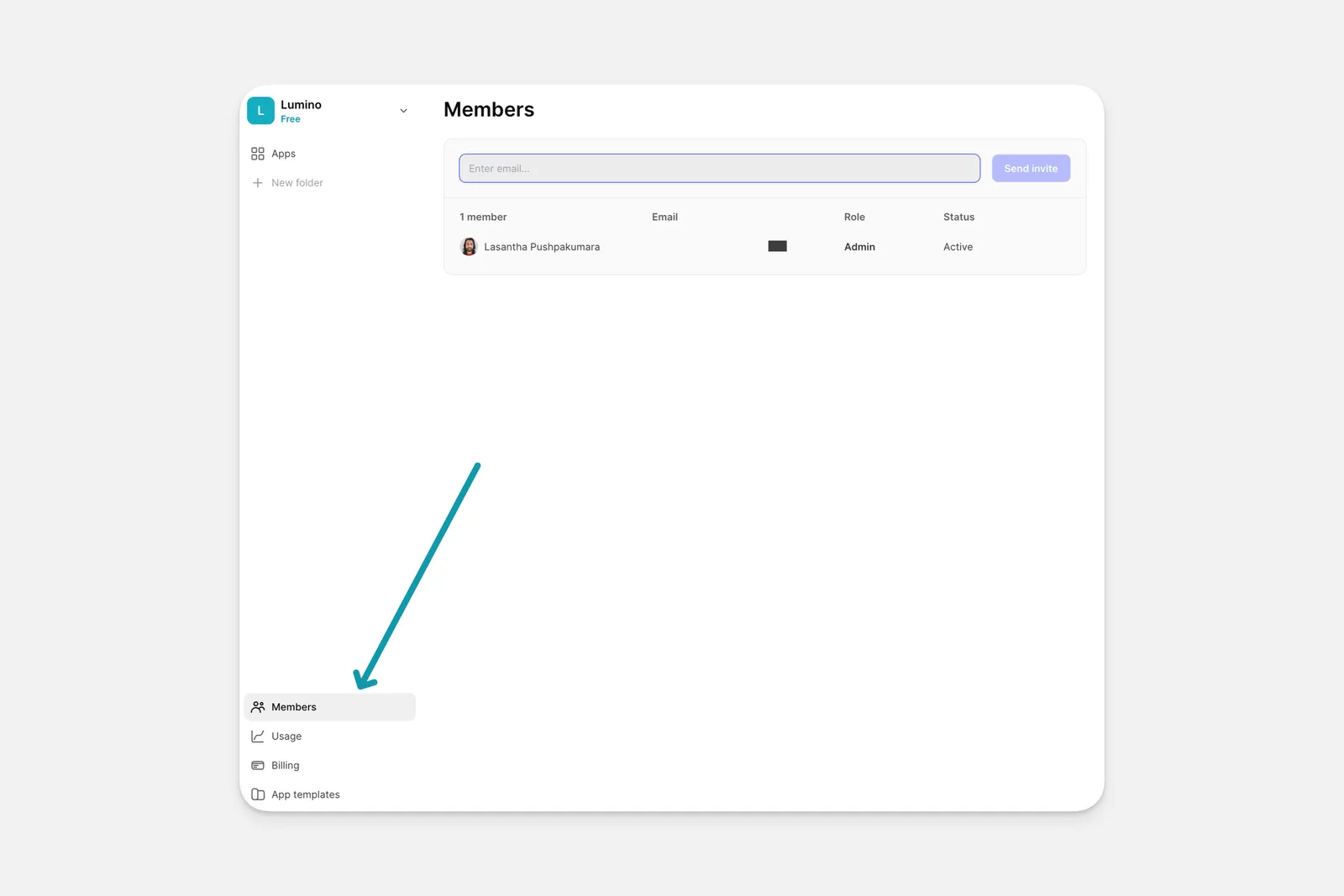
From the Members section of your Team dashboard, admins can add new members by inputting their email addresses directly or by copying the invite link.
Multiplayer app editing
This feature is in beta. Features in beta can be unpredictable and may change as development continues. The Glide Support team does not provide help with these features. Please post any questions in the Community forum.
Any team member with editing access can work on different parts of an app at the same time. Team members can also open the same app in multiple tabs, like viewing data while working in the Layout Editor.
Editors will not see indicators showing when other team members are editing an app. Each person’s undo and redo actions only affect their own changes. If two people are editing the same element at the same time, the last person to save their changes will overwrite the previous changes.
If changes are manually published while people are editing the app, all changes will be published. Make sure to check with other team members before pushing a manual publish update.
Managing notification emails
Glide sends email notifications about usage and action errors to team members. Members can manage their own email notifications by navigating to the Members section of the Team dashboard and clicking on the three dots to the right of their name. Admins can manage email notifications for all members of the team. Only admins can enable email notifications about usage.
Deleting a team
Deleting a team is a permanent action and cannot be undone. If necessary, make sure you create a back-up of your apps by transferring them to another team.
To delete a team, go to the Settings of your team folder and click on the Delete team button on the bottom left corner of the page.
Confirm the pop-up message to proceed with the deletion.
Team ID
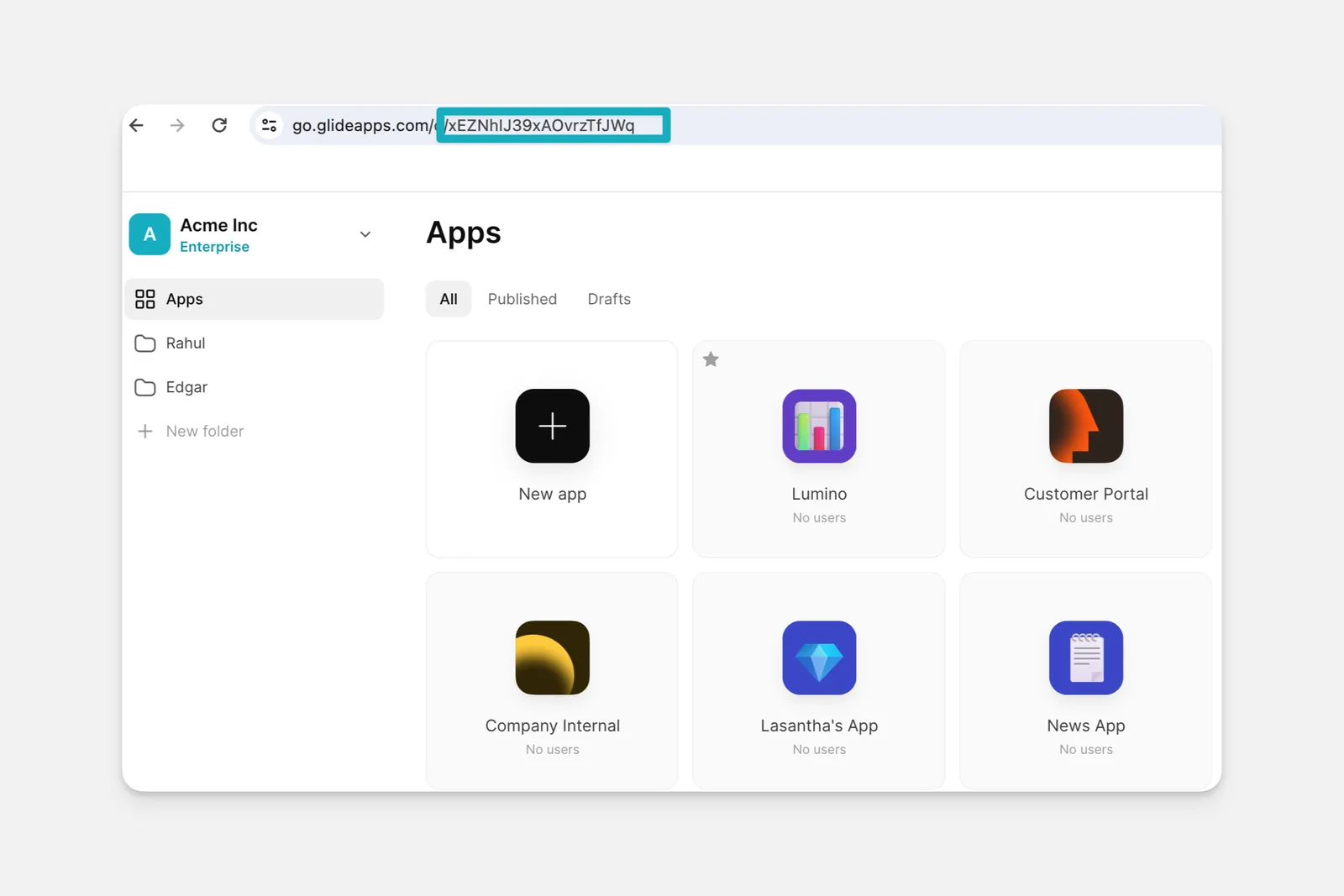
The Team ID appears in the last part of the URL on the team’s Dashboard.