Produce Inspect OS
Photo-first produce quality from receiving dock to manager brief
Preview

Overview
The problem receiving teams know well
Paper sign-off sheets get wet. Spreadsheets live on one person's laptop. A lot of spinach sits in the cooler at 47°F — nine degrees above the maximum — and nobody finds out until the produce buyer calls. By then the lot has already touched three more pallets and the corrective-action conversation has no evidence to stand on.
Produce Inspect OS replaces the paper trail with a fast, photo-first digital workflow that runs from the dock to the manager's morning brief.
Two connected apps, one shared dataset
Inspector Mobile is built for dock staff. An inspector opens a new inspection, picks the arriving lot, selects their name, enters the temperature probe reading and defect percentage, drags five scoring sliders (appearance, temperature, firmness, packaging, labeling), and submits — in under two minutes. The app checks each reading against that commodity's acceptable-quality limits and automatically determines pass, fail, or hold. A failed lot is quarantined immediately; a passed lot is released. Every outcome is timestamped, inspector-attributed, and linked to the lot, supplier, facility, and commodity.
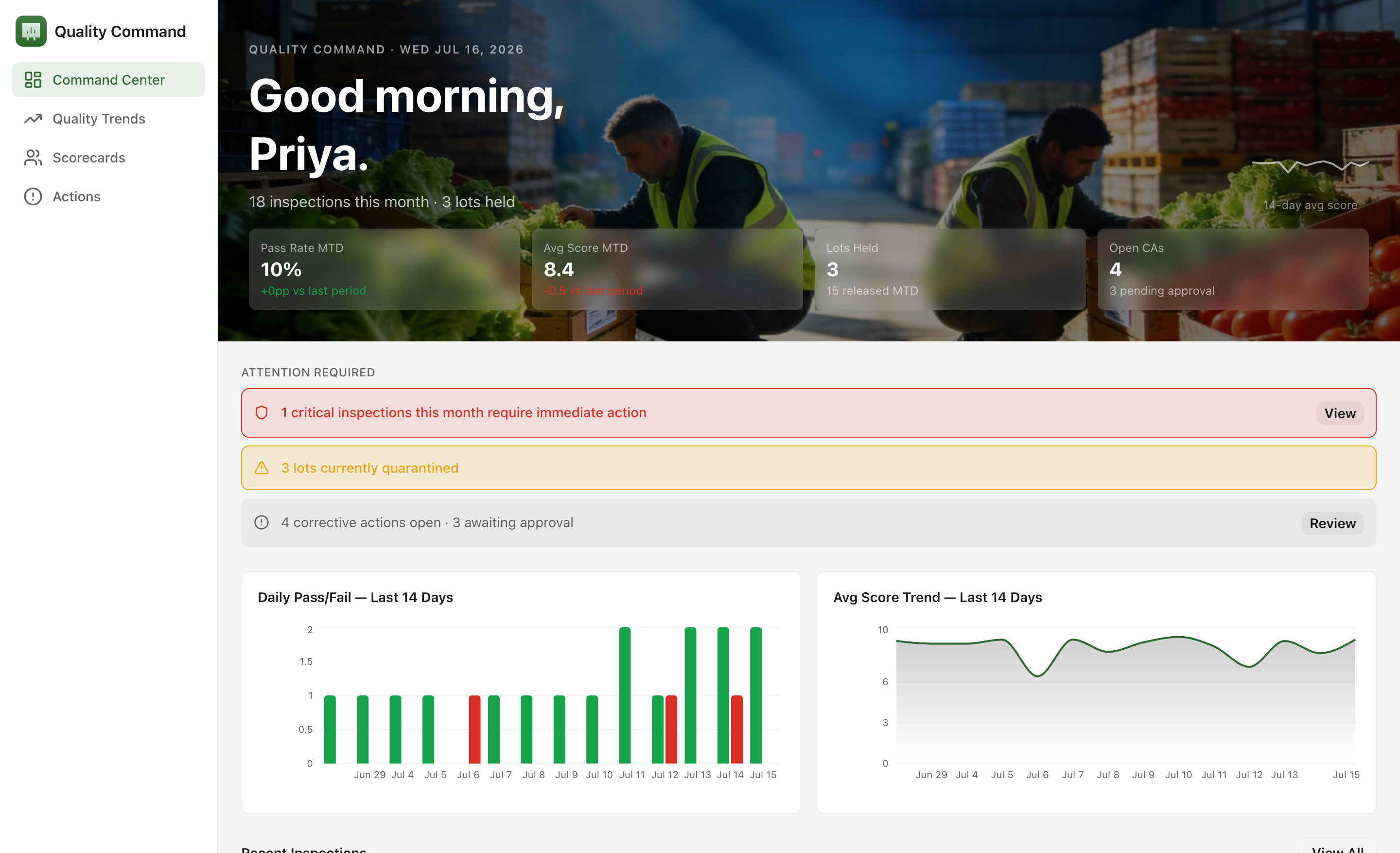
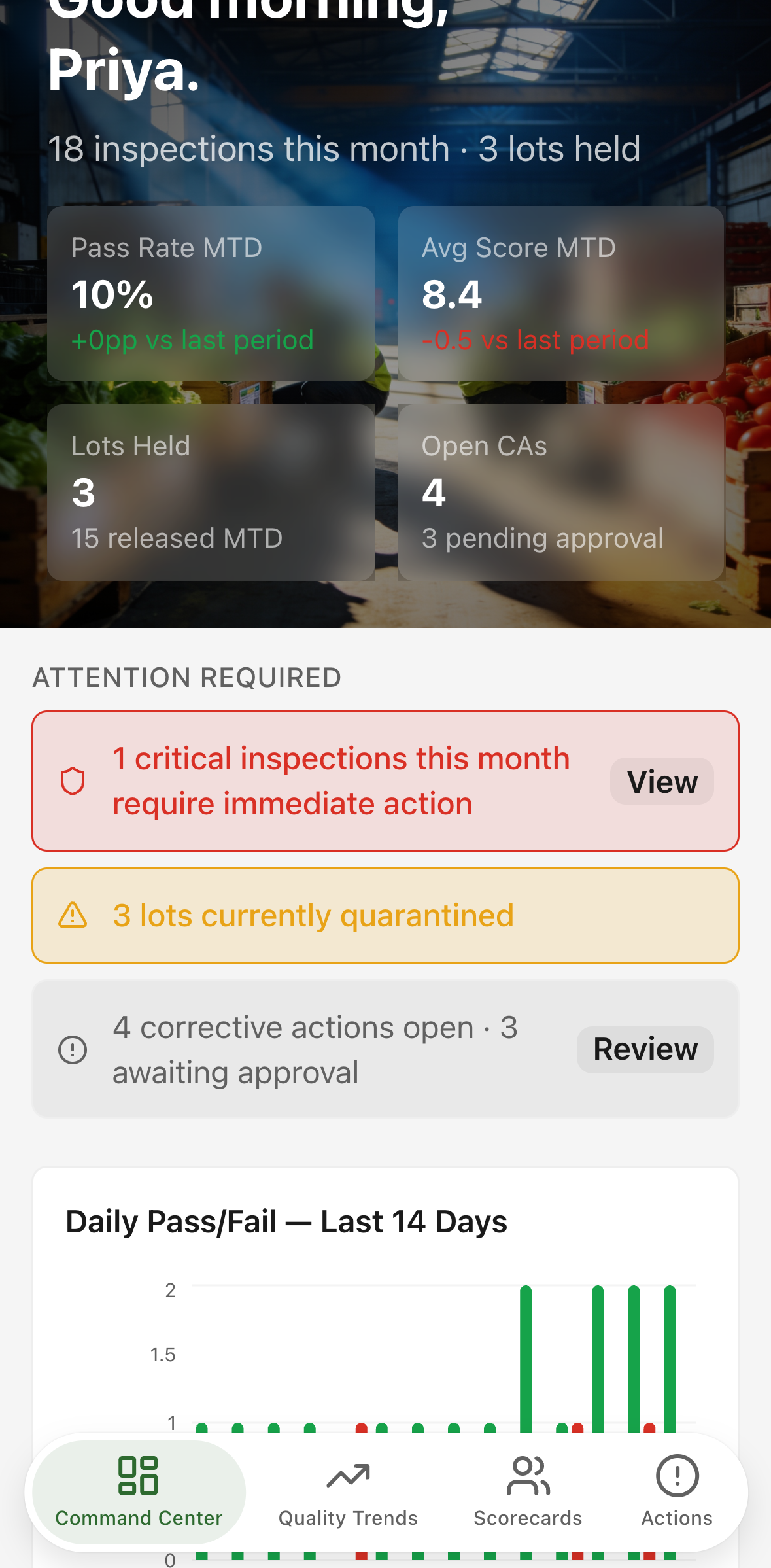
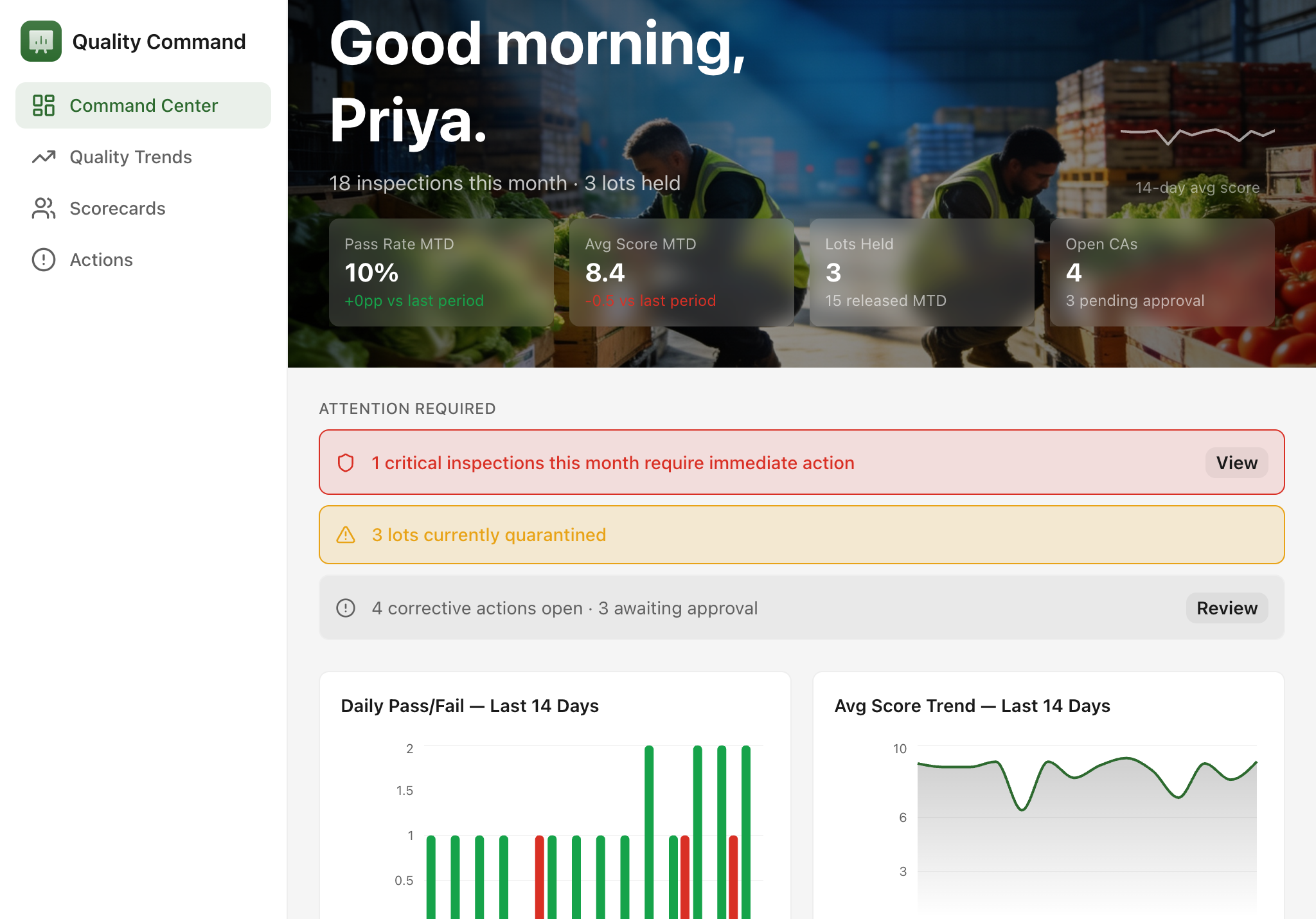
Quality Command is the manager-side view. It opens on a receiving-dock hero with live metrics — month-to-date pass rate, average inspection score, held lots, and open corrective actions — each paired with a delta against the prior period. Charts show daily pass/fail counts and average score trend. The Command Center, Quality Trends, Supplier Scorecards, Corrective Actions board, and Inspection Detail are all reachable from the sidebar.
Photo evidence that holds up in an audit
Every inspection that triggers a hold can carry photos from the dock. Evidence images are attached to the inspection record with a caption and defect category (decay, temperature, mechanical damage). On the Inspection Detail screen, photos display in a two-column grid alongside the inspector's notes, score breakdown bars, and the full list of corrective actions tied to that lot. Nothing is inferred — every pixel of evidence is timestamped and stored against the inspection.
Lot and supplier traceability at a glance
The Lots & Suppliers directory lets inspectors filter by status (pending, released, held) and search by lot number, supplier name, or commodity. Every lot record carries the PO number, country of origin, quantity, receiving facility, and linked supplier. Tapping a supplier opens its scorecard: average score, pass rate, hold history, and all corrective actions in one place. The Supplier Scorecards screen in Quality Command ranks every active supplier by score, pass rate, or number of open corrective actions, with an inline drilldown showing recent inspection history without leaving the page.
Corrective-action approvals with a real workflow
When an inspection fails, a corrective action is opened and assigned. The inspector submits resolution notes through the app; the CA moves to "Pending Approval." A manager reviews the notes, types their name for the audit trail, and approves — the CA closes and the resolved record carries the approver, timestamp, and full resolution text. The Corrective Actions board in both apps shows open, pending, and resolved columns with severity sorting (critical CAs surface first) and overdue flags.
AI: Generate Inspection Brief
On the Quality Trends screen in Quality Command, the "Generate Inspection Brief" button sends the current month's inspection data — pass rate, average score, all failed lots with their supplier names and defect percentages, and the top supplier scorecards — to a native AI model. The model returns a structured manager brief in seconds: an executive summary of the period's quality picture, a bullet list of key findings, a supplier performance section that names specific actors, and a numbered list of recommended next actions ordered by urgency (critical first, then major, then minor).
The same "Generate Inspection Brief" action is available on individual Inspection Detail screens, scoped to that single lot: commodity, supplier, facility, inspector, all five scores, temperature and defect readings against their AQL thresholds, photo count, and any linked corrective actions. The brief lands directly in the detail page — copy it to paste into a morning report, a supplier notification, or an internal escalation thread.
The AI action handles three states cleanly: a loading indicator while the model works, a plain-language error message if the request fails, and an out-of-credits notice with instructions to buy extra credits or upgrade the plan in the Glide dashboard if the workspace has exhausted its AI allocation.
Built for the dock, readable at a desk
Inspector Mobile is designed for 375-pixel phone screens: every list becomes stacked cards below the medium breakpoint, tap targets are at least 44px, the hero image caps at 40vh, and there is no horizontal scroll. Quality Command uses a fixed left sidebar on desktop and drops to a floating bottom nav on mobile. Both apps support dark mode using semantic color tokens throughout — backgrounds, text, borders, chart chrome, and sentiment indicators all flip correctly between light and dark.
What you get on day one
24 seeded inspections across eight commodity types, eight suppliers from three growing regions, 26 lots with varied statuses, and 12 corrective actions spanning the full open–pending–resolved lifecycle — all dated to give meaningful month-to-date metrics, prior-period deltas, and trend charts from the moment the template is opened.