ParcelFlow Control Tower
Track every package, handoff, and exception in one calm control tower
Preview


Overview
The problem every shipping team knows
Your shipment updates are everywhere: spreadsheets in shared drives, status emails no one reads, driver phone calls at 7 a.m., and three different carrier portals open in separate tabs. When a package gets delayed or a delivery fails, your coordinators find out late — and your customers call before you do. The handoff from "label created" to "delivered and signed" has too many blind spots, and there is no single place to own an exception from the moment it surfaces to the moment it is resolved.
ParcelFlow Control Tower replaces that noise with one purpose-built workspace. Operations staff get a live command center for every package in motion. Customers get a clean, branded tracking portal that answers their question before they pick up the phone.
What is included
Control Tower landing
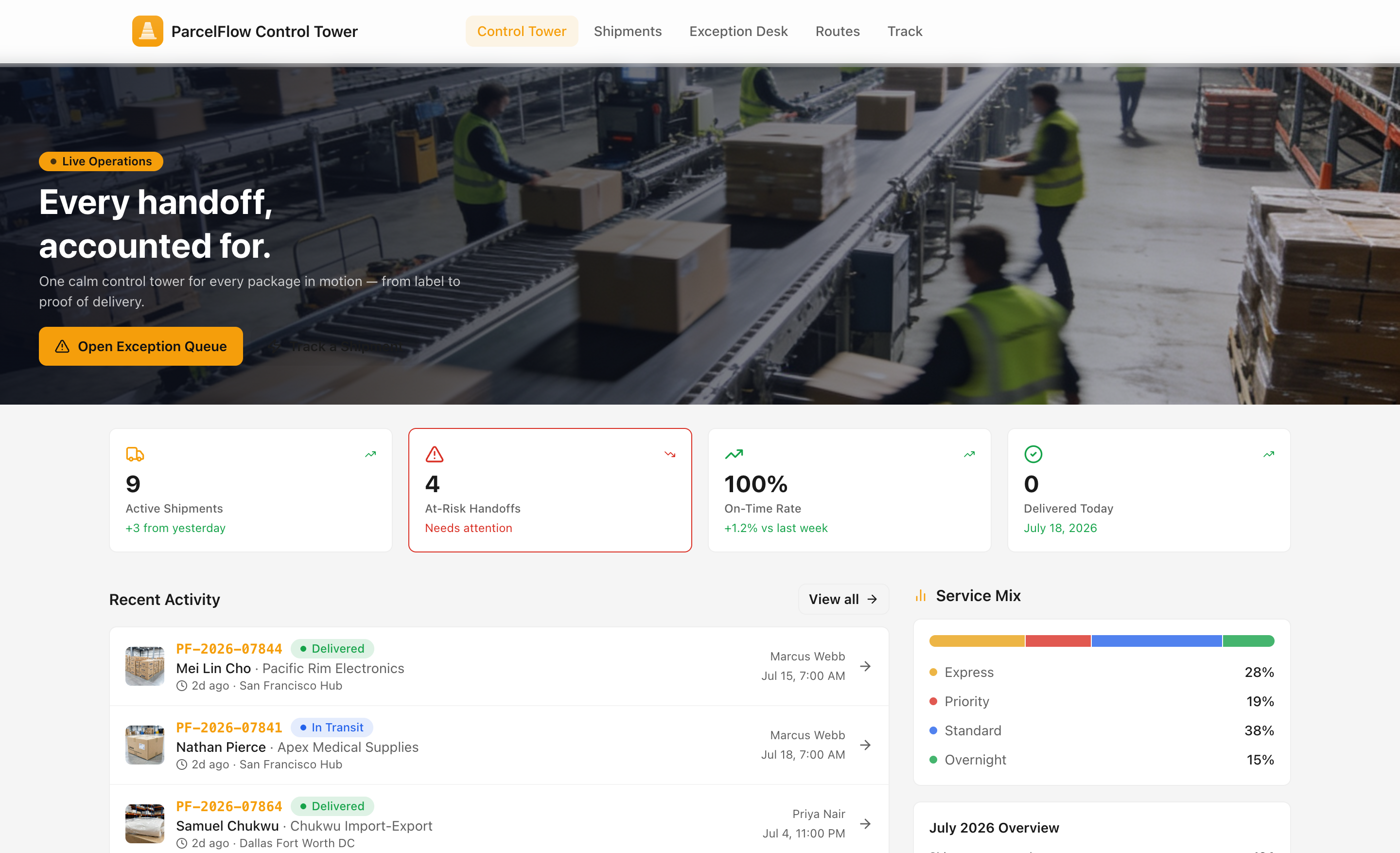
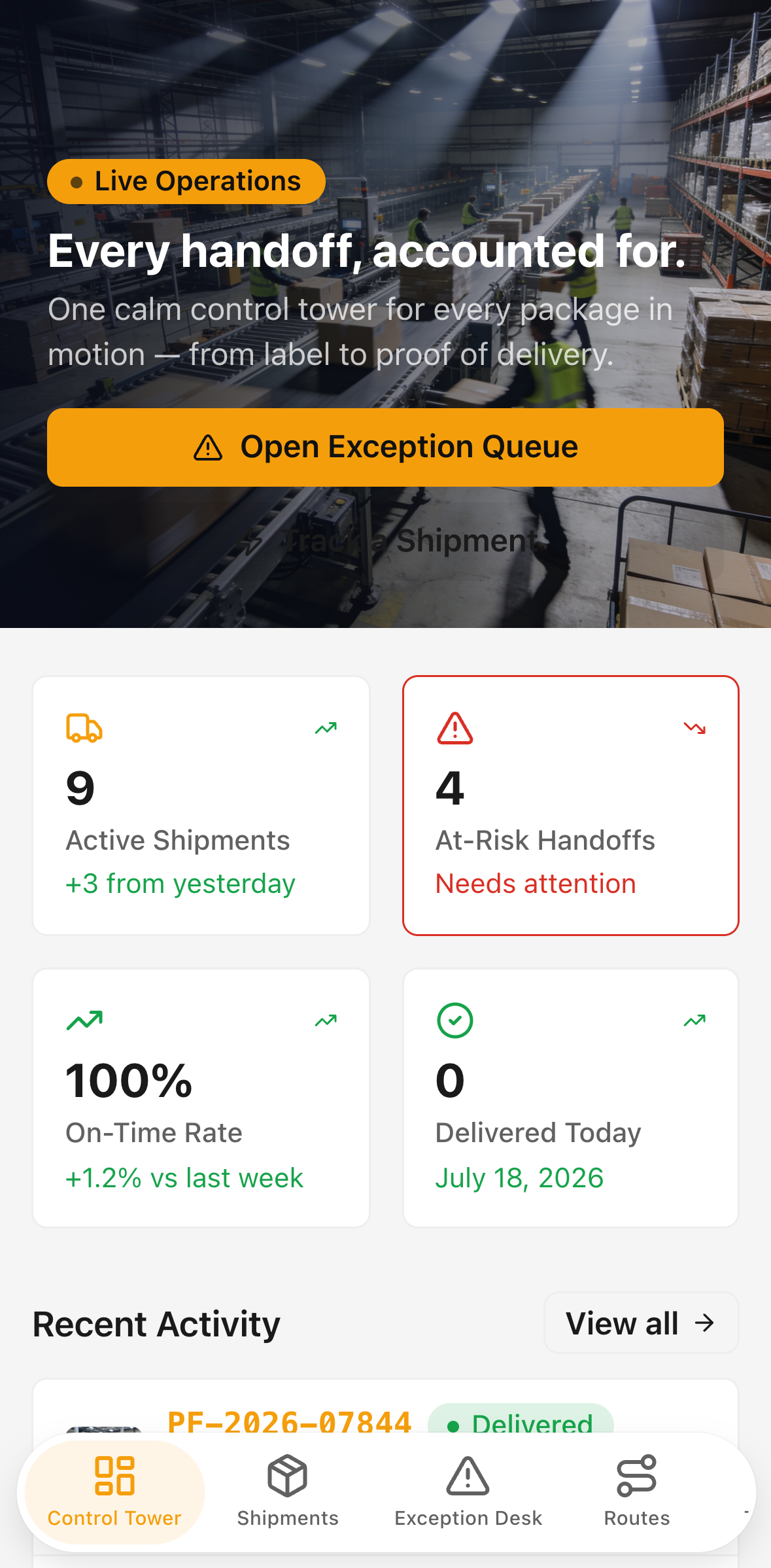
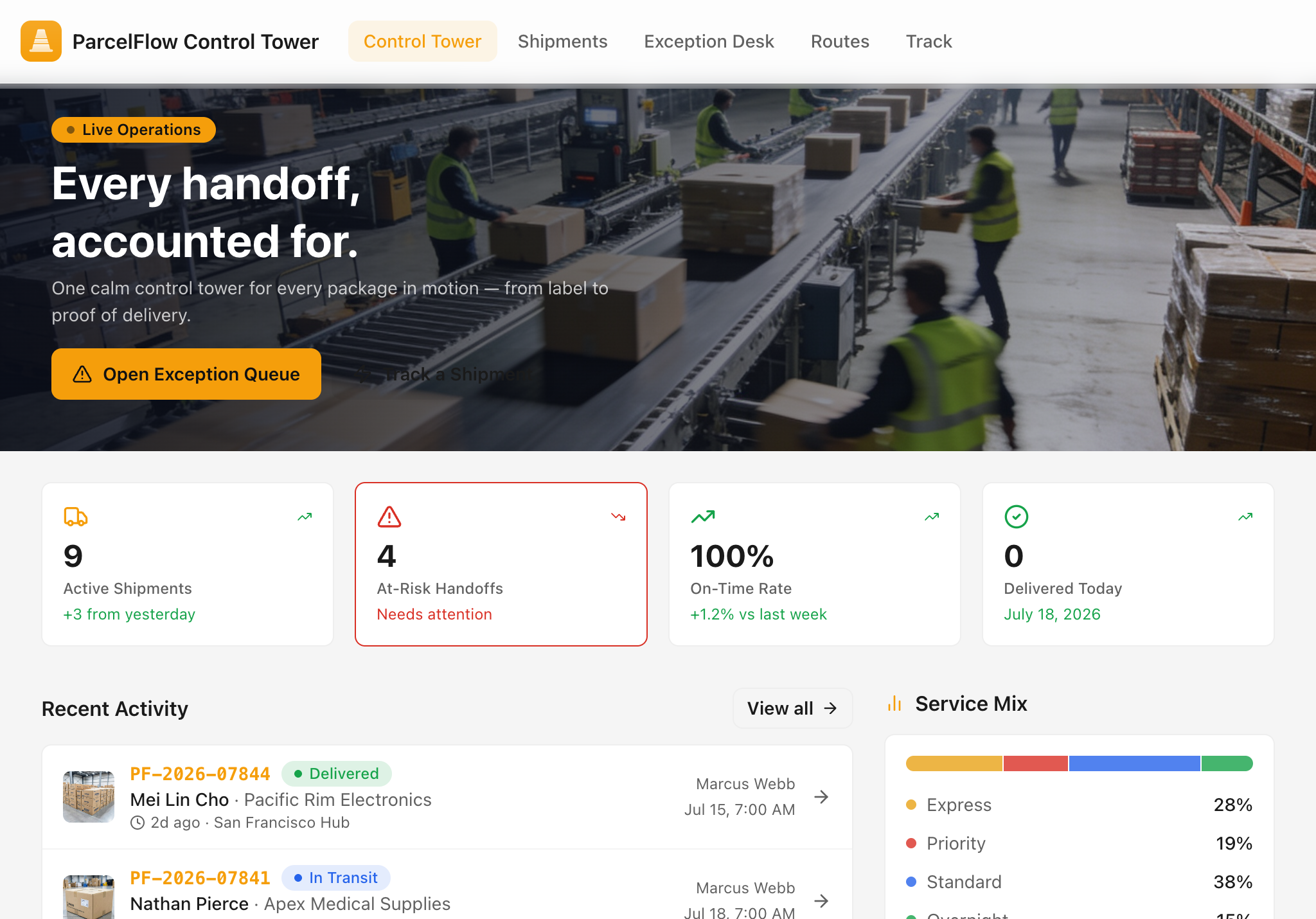
The moment your team opens the app, they see what matters: active shipments in motion, at-risk handoffs flagged, on-time rate with its week-over-week delta, and packages delivered today. A recent-activity strip shows the latest shipments with package thumbnails and status chips, so coordinators can spot a problem without drilling into a report. Service mix at a glance tells you where volume is concentrated. Two primary actions — open the exception queue or track a specific shipment — sit right on the hero.
Shipment directory
A full searchable directory of every package in the system. Filter by status (Label Created, Picked Up, In Transit, Delivered, Exception), service level (Standard, Express, Priority, Overnight), and region. On desktop, records appear in a dense table with package photo, tracking ID, customer name and company, status, service, route, ETA, and assigned coordinator. On mobile, the same records stack into readable cards with the same data — no horizontal scrolling, no clipped columns.
Exception Desk
A kanban-style workflow board with four columns: New, Investigating, Customer Contacted, and Resolved. Every exception card shows its priority level, an aging indicator when a case has been open for more than 24 hours, the exception type, a notes preview, the linked shipment tracking ID, and the customer and coordinator faces. Coordinators move a case forward with a single tap. Empty columns display a clear message rather than a blank space. The board is the single source of truth for every active delivery problem.
Shipment detail
The full record for a package: a hero image of the shipment, weight, origin, destination, creation date, ETA, service level, and priority badge. Below the key facts, a milestone timeline traces every checkpoint from label creation through pickup, transit legs, and final delivery — each event stamped with a location and timestamp. Related exceptions appear in a history panel with their current status, notes, and resolution record. When a shipment is delivered, a proof-of-delivery panel shows the confirmation photo and any signature notes.
The sidebar surfaces the customer's name, company, email, and phone; the assigned coordinator's name, role, and email; and the route and driver details — all in one column so your team never needs to look up a contact separately.
AI-assisted exception summary
On any shipment detail that has an active exception, a Summarize Exception button appears in the header. Pressing it sends the exception notes, exception type, and the most recent tracking events to an AI model. Within seconds, the model returns a concise operational brief — a short paragraph describing what happened, where the shipment stands, and what is still unresolved — followed by a single clear Recommended next step for the assigned coordinator.
This is not a chatbot. It does not require conversation. It reads the data already in the system — the notes your team typed, the scan events already recorded — and produces a structured handoff brief that a coordinator picking up the case can act on immediately. It is designed to reduce the time between "someone logged an exception" and "someone who was not there understands exactly what to do next." The button is visible on the shipment detail page; click it, wait a few seconds, and the brief appears above the timeline. If the account is out of AI credits, the panel tells you clearly and points to where credits can be purchased or the plan can be upgraded in the Glide dashboard.
Routes and handoffs
A card view of every depot-to-depot route in the network. Each card shows the origin and destination, service level, departure and arrival times, driver name, vehicle ID, and a live capacity bar showing how much of the route's weight capacity is currently committed. Routes with active delays are flagged in red with a banner explaining the cause and the number of minutes behind schedule. Shipment and exception counts per route let a manager see at a glance which legs carry the most risk.
Customer tracking portal
A separate, customer-facing experience accessible at the Track tab. Customers enter a tracking number and immediately see a branded status banner — "Your package is on its way," "Delivered — all done," or a plain-language delay notice — followed by the milestone timeline, the estimated delivery window, and the proof-of-delivery photo when the package has been signed for. A support call-to-action sits at the bottom so customers who need help can reach your team without hunting for a contact. Three sample tracking numbers are pre-loaded so buyers can see the experience immediately after installing the template.
Create shipment and log exception
A tabbed operations form with two modes. Create Shipment collects the customer, tracking ID (auto-generated and editable), origin, destination, service level, priority, route, ETA, package description, weight, and assigned coordinator — then creates the shipment record and its first tracking event in a single action. Log Exception attaches a new exception to any existing shipment, lets you choose from eight exception types (Delay, Address Error, Delivery Failed, Damage Reported, Temperature Excursion, Customs Hold, Missing Documentation, Weight Discrepancy), set priority, write notes, and assign a coordinator. Both forms validate required fields, show error messages inline, and display a success state with a clear next step when the action completes.
Built for operations teams and their customers
The template is designed for two distinct audiences in a single workspace. Internal operations staff use the Control Tower, Shipments directory, Exception Desk, and Routes views to manage the full shipment lifecycle and own exceptions from detection to resolution. External customers use the Tracking portal to self-serve status updates without contacting support.
Every screen works on desktop and mobile. The app is fully rebrandable: swap the accent color for your company's brand color and the imagery updates throughout. The data model supports multiple regions, service levels, and team members out of the box, with seed data covering 24 shipments, 12 exceptions, 12 routes, and 24 customers across a 90-day window so the app looks and feels live from the moment you install it.
Install the template, connect your data, and give your team the control tower they have been missing.