HighPoint LiftOS
Run every lift from quote to signed ticket
Preview



Overview
What this replaces
Crane rental and heavy-lift operations typically run across a patchwork of shared spreadsheets, email chains, paper lift tickets, and disconnected maintenance logs. Dispatchers chase availability in one file while operators look for the approved lift plan in a different inbox. Signed time tickets arrive days after the lift, delaying invoices. Certification gaps surface only when a job is already scheduled. When a scope change arrives on site, there is no clean way to add a change order without losing the thread.
HighPoint LiftOS replaces that patchwork with one connected workspace. Every quote, job, crane, operator, rigging inspection, lift plan, permit, field ticket, and safety incident lives in the same shared database. The four apps below are four purpose-built views into that single source of truth — each optimized for the person using it.
The four connected apps
Lift Command Center
The back-office hub for project managers, estimators, and branch managers. The opening screen shows a command-center hero with live operational metrics: active jobs, fleet utilization, month-to-date revenue, unbilled active jobs, certification alerts, and open safety holds — each with a drill-through to the relevant records. Below the metrics, the Active & Scheduled Jobs panel shows every job with its readiness status (Not Ready → Lift Plan Pending → Ready → Dispatch Ready) and contract value at a glance. A live field-activity feed surfaces events as they happen: signed tickets, lift completions, safety holds, and dispatch updates.
From the Jobs directory, you can search and filter across all branches by job number, customer, site, or status. Clicking any job opens a tabbed detail page with lift scope, financial summary, permit status, crew and equipment assignments, field tickets, and change orders — all in one place. The Change Orders tab lets back-office staff approve pending COs without leaving the screen, and field tickets flag themselves as invoice-ready when the customer representative signs.
The Pipeline screen tracks every opportunity from prospect through proposal, quoted, and won, with estimated margin and probability displayed inline.
Dispatch Board
A visual weekly resource schedule for crane supervisors and dispatchers. The desktop view shows a grid with jobs on rows and days on columns. Each cell shows which operator or crane is assigned to that job on that day, color-coded by readiness: green border for Dispatch Ready, amber for pending, red for Not Ready. Today's column is highlighted. Navigating a week forward or back is a single click.
On phones and tablets, the same data renders as a vertical stack of day cards — one card per day showing all active jobs and their assigned resources in a readable list. Tapping a job shows its readiness badge and all assignments for that day.
The Equipment tab lists every crane in the fleet with capacity, current location, utilization percentage, and upcoming inspection and maintenance due dates — with overdue alerts surfaced in red. The Crew tab shows operators and riggers with their upcoming assignment count and any expired certifications flagged inline.
Crew Mobile
A phone-first app for crane operators, riggers, and site supervisors. Opening the app shows Today's Lifts: every job assigned to the crew member that day, with the job's readiness status, lift scope, and assigned equipment visible before leaving for site.
Tapping a job opens the Job Brief, which has three tabs. The Lift Brief tab presents a 10-item pre-lift meeting checklist — ground conditions confirmed, rigging verified against WLL, exclusion zone established, wind speed logged, permits on site, emergency plan reviewed, and more. Each item is a large tap target that toggles checked. A progress bar tracks completion, and the Complete Pre-Lift Brief button activates only when all items are checked. Completing the brief flows directly to the field ticket.
The Lift Plan tab shows the approved plan details — load weight, pick height, swing radius, rigging description — and surfaces the hazard section in an amber warning card. If no approved plan exists, a clear warning tells the operator to contact their supervisor before proceeding. The Permits tab lists every issued permit with number, issuing authority, and expiry date.
The Field Ticket screen captures straight time, overtime, travel, waiting, and equipment hours in a compact grid. The operator adds field notes, then enters the customer representative's name to confirm the ticket — the app shows a confirmation card before final submission. Submitted tickets write directly to the shared database and appear in the back office immediately.
Fleet & Safety
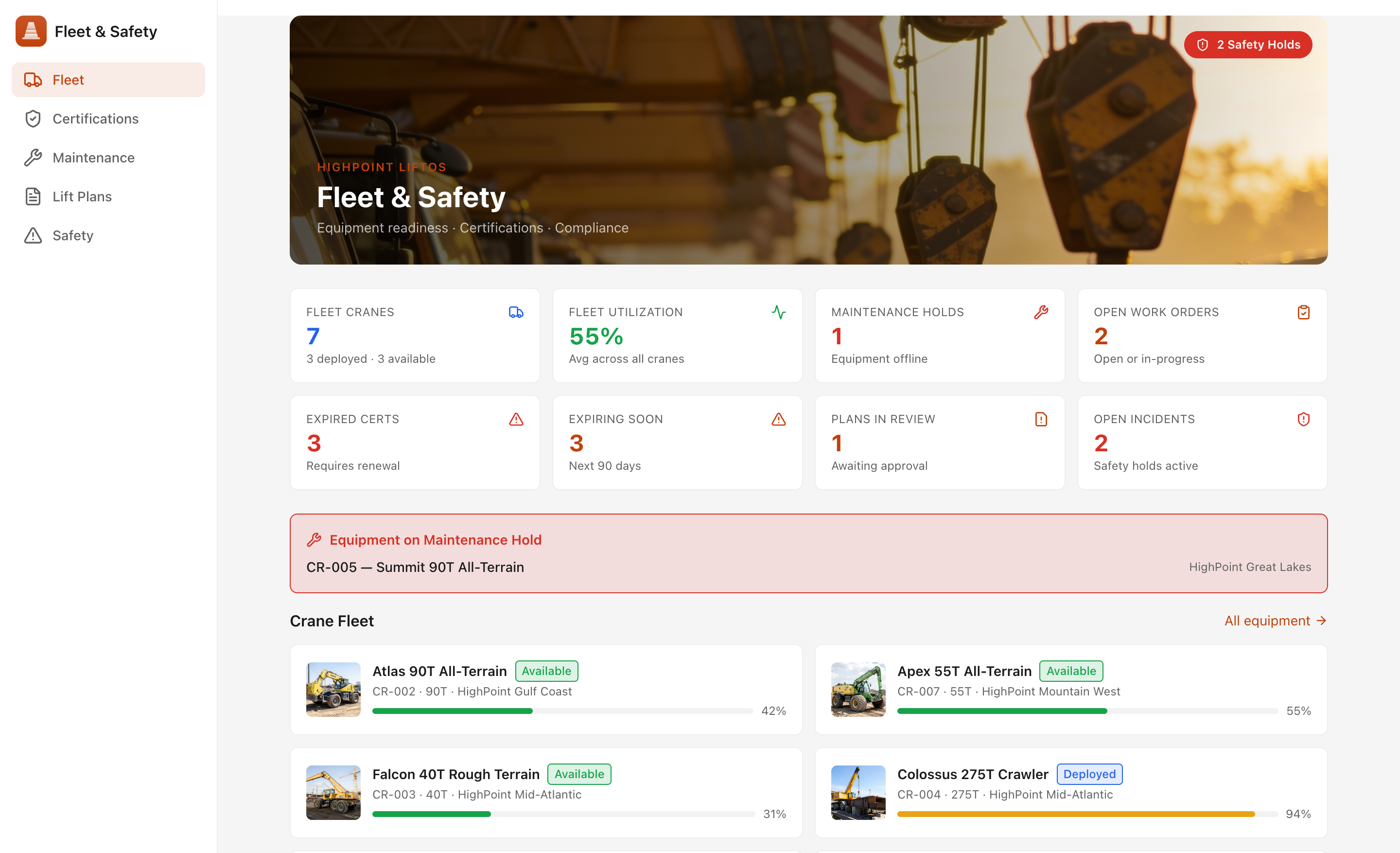
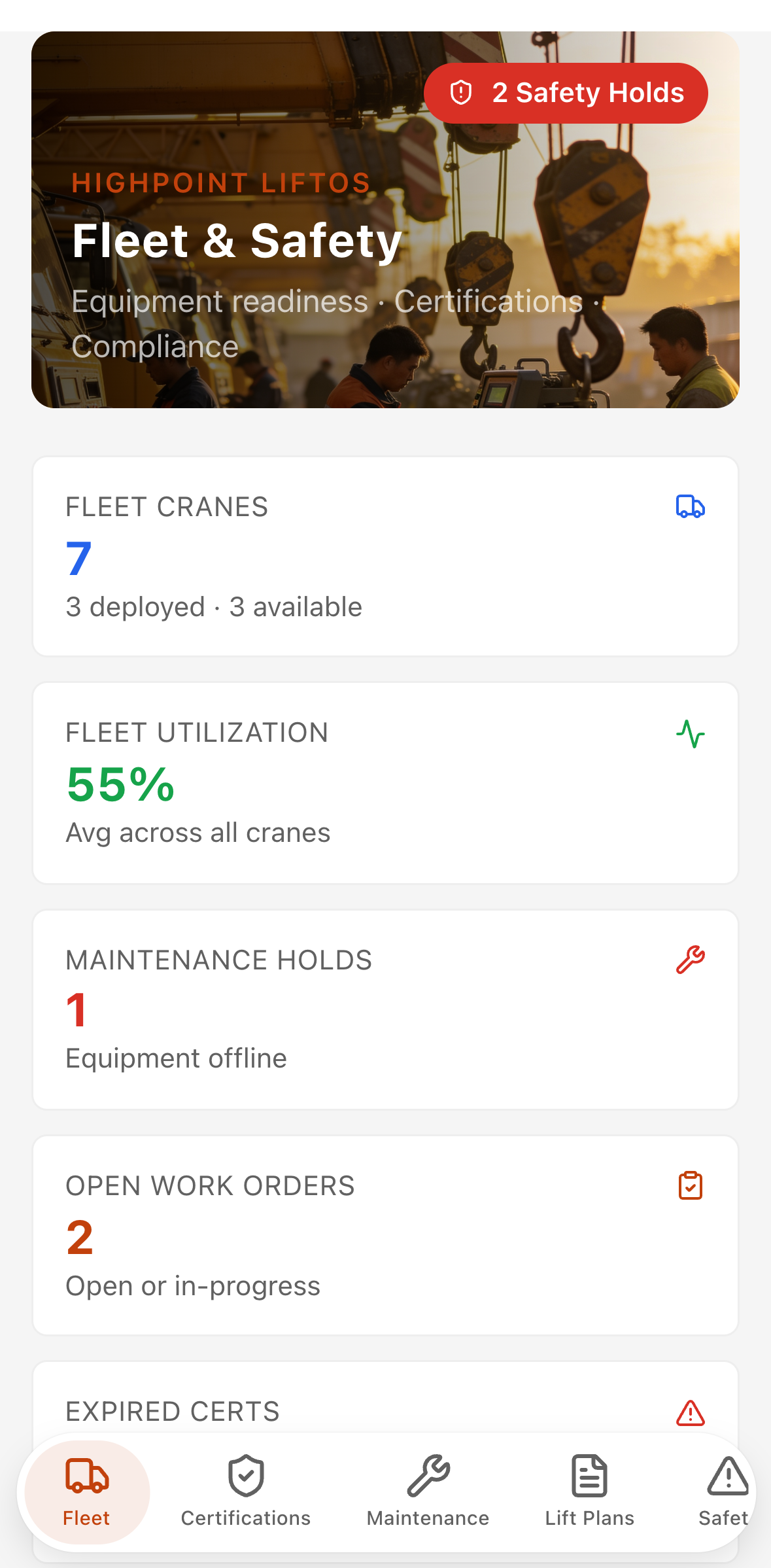
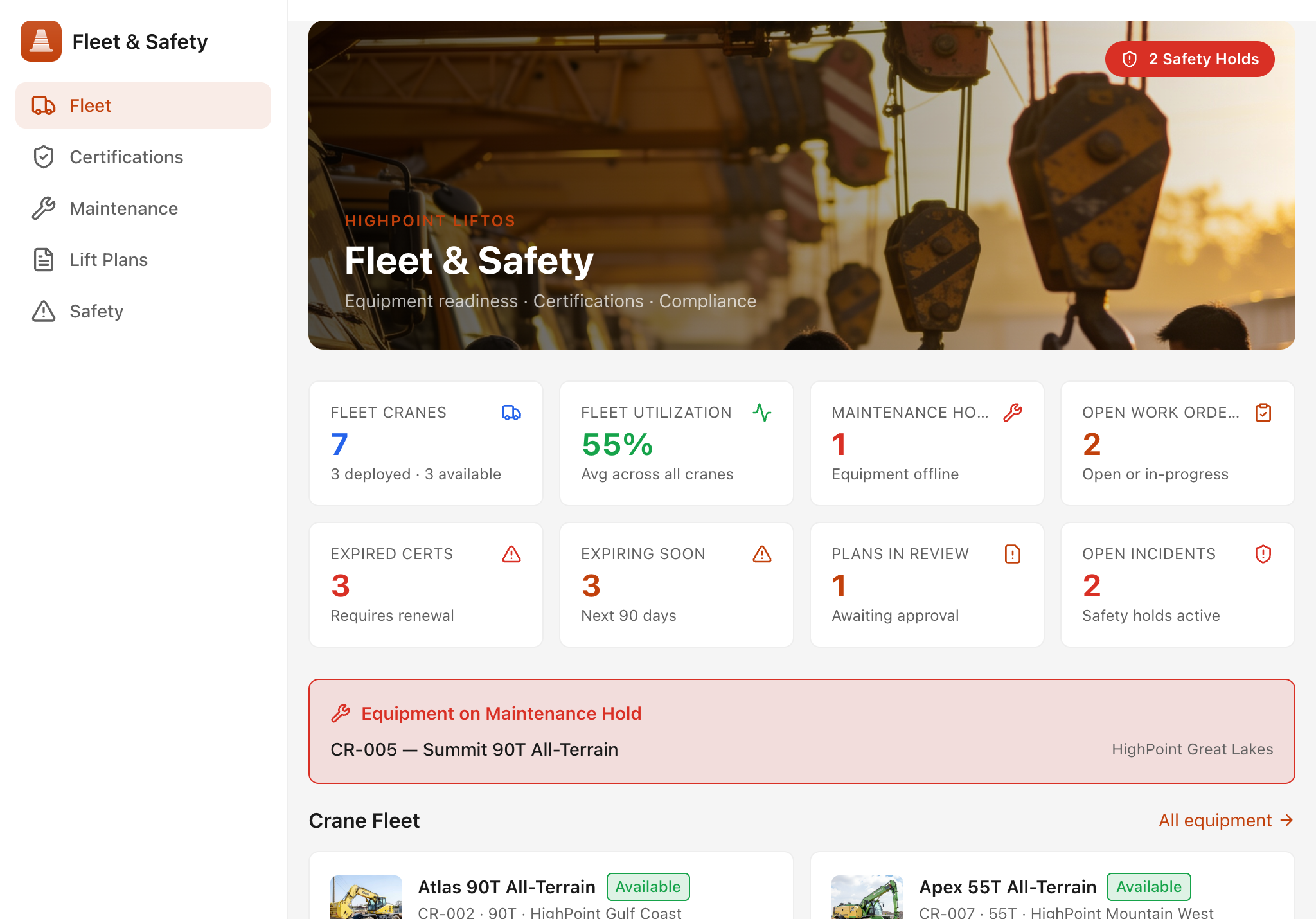
A back-office and field-reference app for HSE managers and fleet supervisors. The dashboard opens with a hero image of the crane yard and eight KPI cards: total cranes, fleet utilization, maintenance holds, open work orders, expired certifications, expiring certifications, lift plans in review, and open safety incidents. Each card links to the relevant detail section.
The Equipment section lists every crane and aerial lift with specs (capacity, max radius, boom length), status, utilization bar, and branch location. Equipment on a maintenance hold gets a red border. Clicking a unit opens its detail page with a full inspection history (pass / pass with observation / fail, with deficiency notes and corrective actions) and all maintenance work orders. Open work orders show a Start Work → Mark Complete action flow.
The Certifications section lists every NCCCO, OSHA, first-aid, and specialty credential across all staff, with expired credentials highlighted in red and expiring-soon credentials in amber. Filtering by status narrows the list to the records that need attention.
The Maintenance section organizes work orders by priority — urgent and high first — with type (preventive, corrective, emergency), assigned technician, scheduled date, and total cost. Completed work orders show the completion date and move to the bottom.
The Lift Plans register shows every lift plan across all active jobs, sorted so in-review plans appear first. A warning banner appears when any plan is awaiting approval, because no job can be dispatched until its plan is approved. Critical lifts are marked with a distinct badge.
The Safety section logs all incidents, near misses, and active safety holds. Open incidents sort to the top; active safety holds get a high-contrast red banner. Each incident record shows type, severity, root cause, and corrective action. An OSHA Recordable badge flags any recordable incident. The Close Incident button resolves a hold once corrective action is complete.
The quote-to-closeout workflow
-
Prospect to quote. The estimator creates an opportunity in the Lift Command Center Pipeline with customer, site, lift scope, load weight, crane class, estimated value and cost, and mobilization fee. Probability and expected dates track the deal through prospect → proposal → quoted → won.
-
Approved quote becomes a job. Winning the quote converts it to a job with its own job number, PO reference, and branch assignment. The job's readiness status starts at Not Ready.
-
Readiness gating. The job cannot move to Dispatch Ready until four conditions are met: the lift plan is approved, all required permits are issued, crew certifications are current, and the pre-job brief is logged. Each gap surfaces as a status badge visible in both the Command Center and the Dispatch Board.
-
Dispatch. Once the job is Dispatch Ready, the dispatcher assigns cranes and crew to the job on specific dates in the Dispatch Board. Assignments appear in the crew member's Crew Mobile app as their Today's Lifts entry.
-
Field execution. On site, the operator opens Crew Mobile, reviews the Job Brief, steps through the pre-lift checklist, and — once all items are checked — proceeds with the lift. After work, they submit a field ticket capturing hours, field notes, and the customer representative's signature.
-
Change orders. If the scope changes on site, the crew member or supervisor notes the change in field notes and a change order is created in the Command Center. The project manager reviews and approves it from the job's Change Orders tab.
-
Invoice readiness. Once field tickets are approved and any change orders are resolved, the job's tickets are flagged as invoice-ready. The invoices screen tracks draft → sent → paid status across all jobs.
-
Closeout. When all tickets are approved and invoices are paid, the job status moves to Closed. Actual cost is recorded against estimated, and the final margin is visible in the job detail financial summary.
Draft Lift Brief — AI action
The Lift Command Center includes a real AI action named Draft Lift Brief, accessible from the Lift Plan tab of any job detail screen. It is purpose-built for the pre-lift safety brief that a supervisor reads aloud to the full crew before a pick begins.
Inputs pulled from the job and lift plan:
- Job number, title, customer, and site address
- Lift scope description and load weight in tons
- Crane class
- Lift plan type (standard or critical lift)
- Pick height, swing radius, ground conditions, and outrigger setup
- Rigging description and working load limit
- Identified hazards
What the AI produces:
A structured brief with six sections: Lift Summary (two sentences stating what is being lifted, where, and with what), Critical Controls (three to five bullet points addressing each identified hazard), Rigging & Setup Verification (three to four checkpoints the rigging team confirms before the lift), Communication Protocol (radio channels and roles for operator, rigger, and signalperson), Weather & Environmental Limits (maximum wind speed, visibility, and ground-bearing conditions), and Go / No-Go Criteria (the conditions under which the lift must be halted and re-assessed).
Editable output: The drafted text appears in an editable text area so the supervisor can adjust wording, add site-specific details, or remove any section that does not apply before reading it to the crew.
Copy to Brief: A single button copies the complete brief to the clipboard so it can be pasted into a safety management system, emailed to the customer, or printed for the site file.
Out-of-credits handling: If the project's AI credits are exhausted, the action displays a clear message directing the user to buy extra credits or upgrade the plan in the Glide dashboard, and the rest of the job detail remains fully usable without AI.