

Home
Home is where you start work with GlideOS. Chat with the agent, open your organization’s apps, projects, and chats, invite team members, and manage your account.
Chat with GlideOS
Start working with GlideOS directly from the home screen. Give GlideOS context, and it will help you work.
When you create a new app from the home screen, GlideOS automatically creates a Project for it. To work in an existing project, make sure you direct GlideOS to work there in your first message.
Prompt box
Type or dictate what you want to do. A good first prompt contains detailed context about the task you want the agent to complete. For example, if the task is to build an app, the first prompt should include who the app is for, what it should help users do, what information the app should use, and what features are essential.
Learn more about prompt engineering on our blog.
Add files and data
Click the sign at the bottom left of the prompt box to upload files. GlideOS can read and work with text files (including markdown), JSON, images, and PDFs.
If you have existing data to incorporate, upload CSV or Microsoft Excel files, or connect to Google Sheets.
Choose a mode
If you have a paid plan, you can select whether GlideOS uses a Light, Balanced, or Heavy AI model. You can switch between them at any time during a single chat session. The mode you select applies to new messages until you change it again.
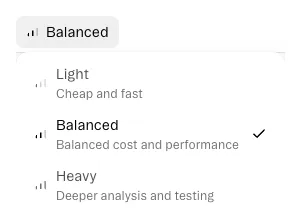
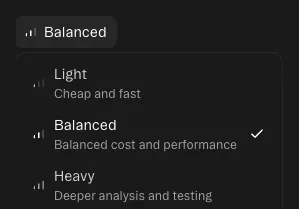
Each mode uses credits at a different rate. Learn how to choose a mode and manage credits.
Apps, Projects, and Chats
Three cards show your organization’s work. All apps shows the apps your organization has built. All projects shows the projects you can work in. All chats shows your conversations with GlideOS.
- Click a card’s title to open the full Apps, Projects, or Chats page.
- Click the filter icon to narrow a card to your own work or your favorites.
- Click the sign to create an app or project, or start a chat.
Search
Click the at the top of the sidebar to search your organization. You can also press ⌘K on Mac, or Ctrl+K on Windows.
Type to see results across your apps, projects, and chats. Each result shows the project it belongs to. Use the All, Chats, Projects, and Apps tabs to narrow what you see. Press Esc to close.
Before you type, Navigate to offers shortcuts: start a new project, open Projects, open organization settings, or invite members.
Settings and Your Account
Click your organization’s name at the top of the sidebar to open the account menu. From here you can switch between organizations, open Settings, set Appearance, or log out.
In Settings, manage your organization’s members, billing, usage, and agents, plus your own profile, notifications, and account access. The first Settings screen holds your organization’s name, icon, and accent color. Choose a swatch to set the accent color, or pick a custom one. It saves as soon as you choose. In Profile, change the name tied to your account. To change your email address, contact Glide support.
Click Invite at the top right of Home to invite teammates to your organization.
Appearance
Open Appearance in Settings, or right-click the background on Home or a project screen. Choose between Light, Dark, and System to set the theme on that device. Your choice applies to the GlideOS dashboard and the app preview on that device. A published app follows the appearance settings of the end user who opens it.
You can also set a wallpaper for Home. Choose Team to set it for everyone in your organization, or Just me for yourself. Pick a gradient, a blueprint pattern, a custom image, or none.
Notifications
Open Settings from the account menu, then select Notifications. There are two types of notifications GlideOS can send: desktop and email.
On desktop, GlideOS can get your attention while you work in another tab.
- Sound alerts: Play a chime when replies and builds finish.
- Notify me when a new app is ready: Get a desktop notification through your computer’s notification defaults.
Email notifications go to organization admins and apply to every organization you administer. You can set email notifications for the following situations:
- Out of credits: Get an email when an organization runs out of credits.
- Issue with workflow: Get an email when a workflow run fails.
- Workflow turned off: Get an email when a workflow is turned off after repeated failures.
Account access
When you’re working through a problem with Glide support, you can give them temporary access to your account instead of reproducing the issue for them. Open Settings, select Account access under You, then click Approve support access.
Access lasts 14 days and expires on its own. Cancel it earlier from the same screen whenever you want.
Get Help
Click the at the bottom of the sidebar to open the help menu.
- Documentation: Visit the docs for GlideOS.
- Changelog: See the latest updates to GlideOS.
- Get support: Start a chat with support and see GlideOS status.
Frequently Asked Questions
Which browsers can I use with GlideOS?
GlideOS supports Chrome, Safari, Firefox, and Edge on desktop. On mobile, GlideOS supports Chrome and Safari.
It’s best to use the latest version of your browser. GlideOS supports the current and previous major version of each browser. You can review the version release history for each browser below:
Why am I not getting desktop notifications?
GlideOS sends desktop notifications through your browser. Check your computer’s system settings and make sure notifications are enabled for the browser you use with GlideOS, and that your browser allows notifications from the GlideOS site.